
EDI relations
“EDI Relations” is a menu entry inside the Monitor which allows you to view all of your partners and their specific EDI permissions from one place.
Introduction
“EDI Relations” is a menu entry inside the Monitor which allows you to view all of your partners and their specific EDI permissions from one place. By doing so, you’ll be informed about which types of actions can be taken with your partners across ecosio products and services.
Prerequisites
Although no specific permissions are required in order to access all of your EDI relations inside the Monitor, the page itself must be enabled by the ecosio Onboarding & Operations team when configuring your Monitor setup.
Testing
When onboarding your company as well as your customers (partners) along the way, you’ll perhaps want to send test messages across the ecosio integration hub first on TEST. When conducting this exercise, you’ll be able to view your EDI relations inside your TEST instance of the Monitor as well. Finally, if there are any clear bugs, you can report them by hitting the “News & Feedback” button, as shown below:
From there, a window will pop up where you can submit your feedback and bugs:
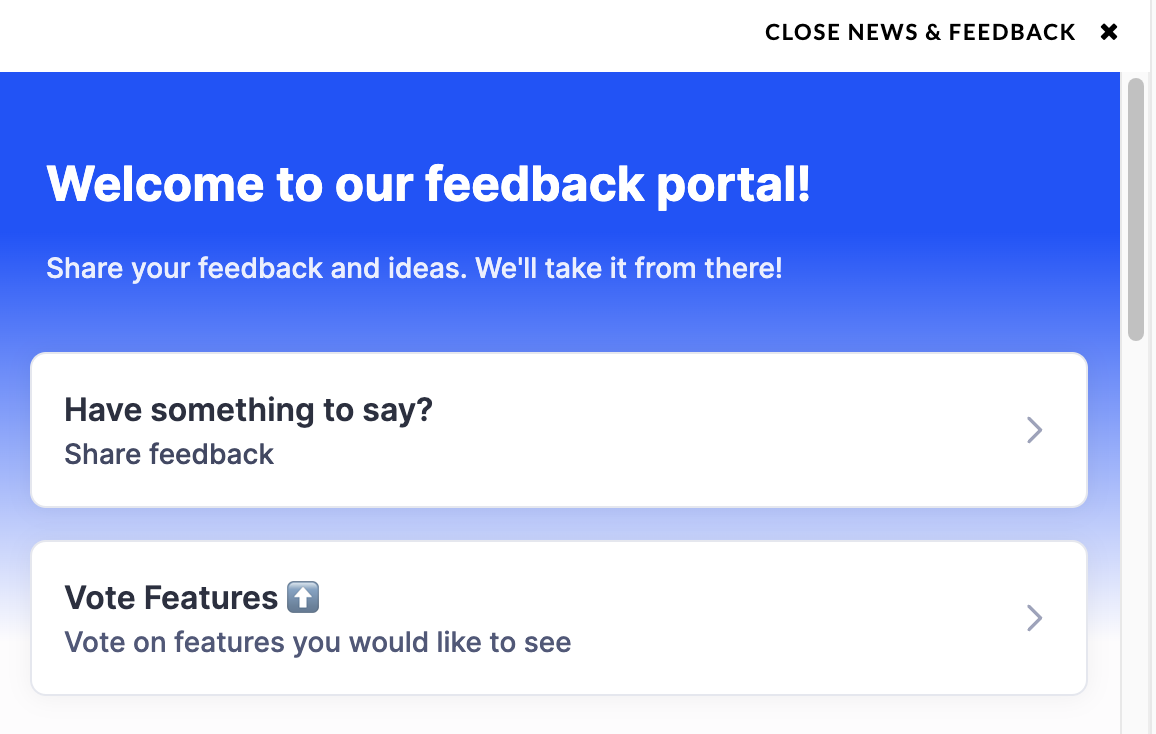
More information on this can be found in the “News & Feedback” section.
Step-by-Step Guide
What can you view in the EDI Relations overview page?
In the EDI relations menu selection generally looks like this:
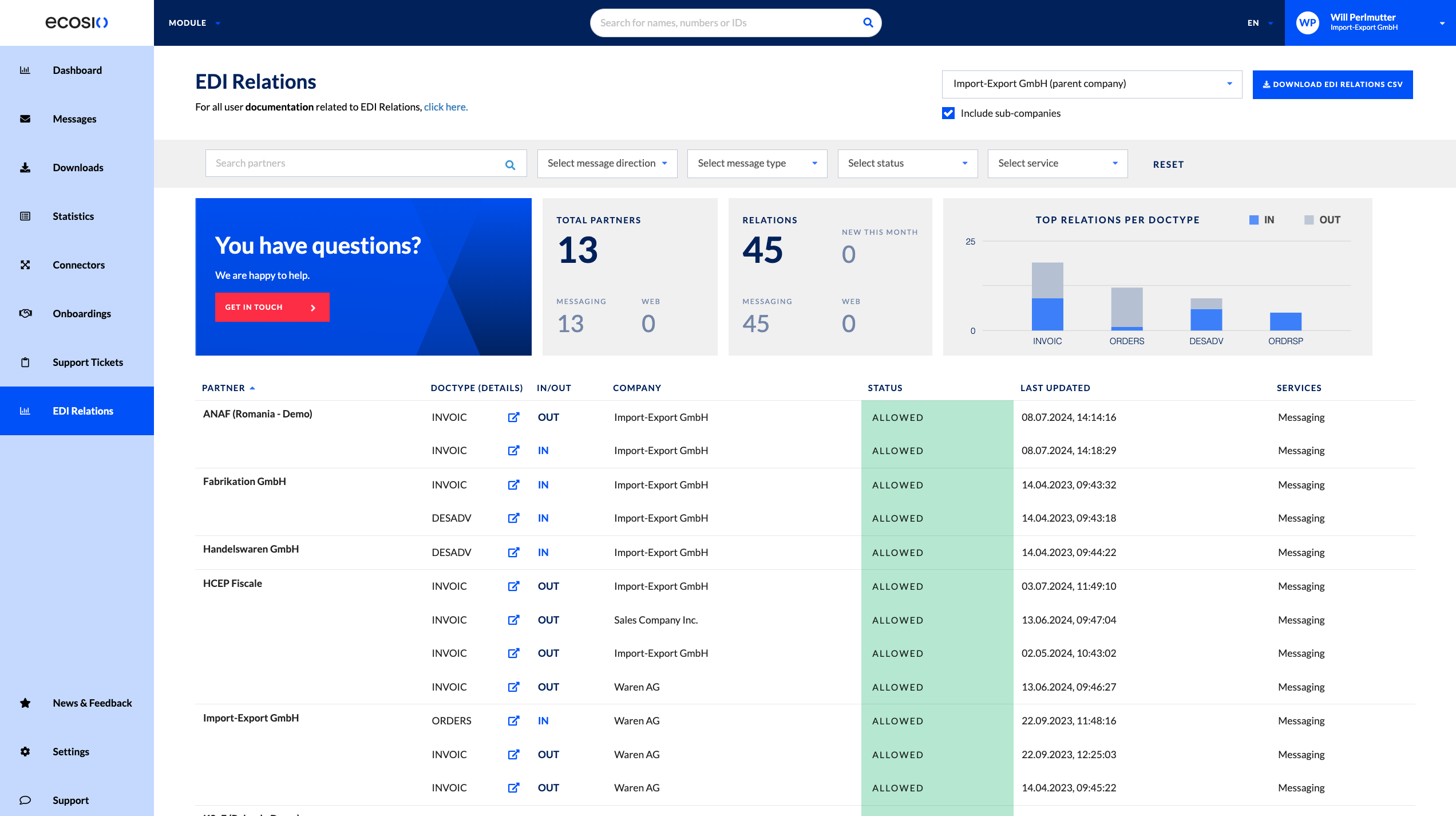
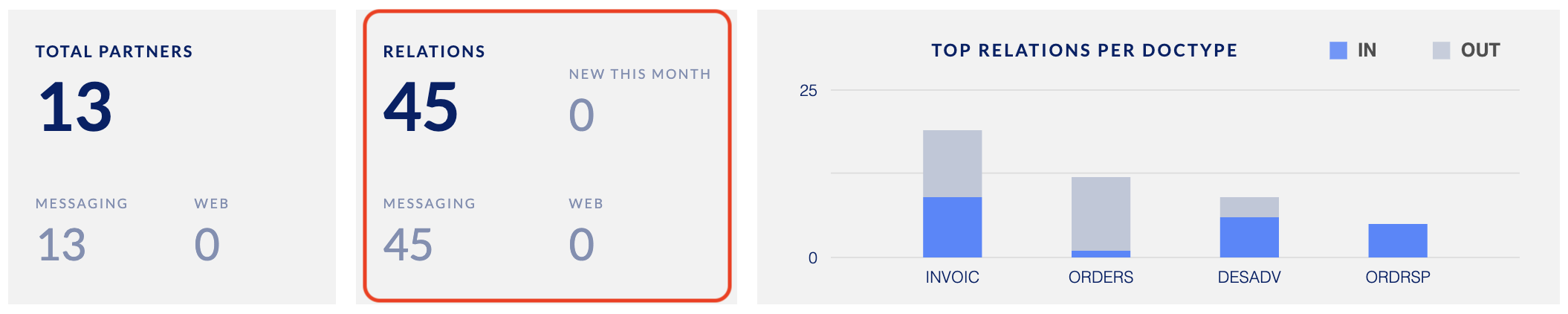
The following information can be viewed once inside the menu selection, at the top:
- Total partners: This number represents how many EDI partners you have in total which have been connected to ecosio's integration hub via EDI relations. Additionally, these partners are split via ecosio services used.
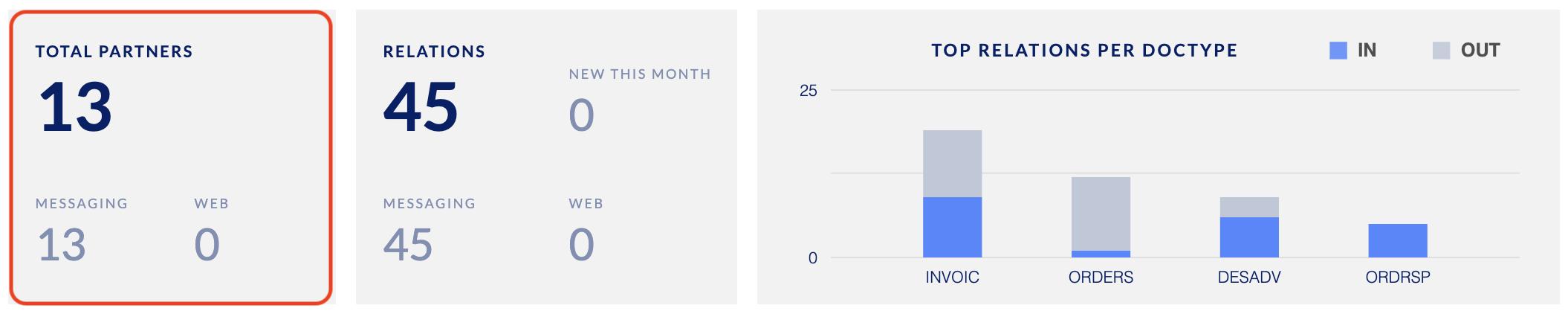
- Total Relations: This number represents how many total EDI relations you have among all EDI partners. These relations are split via ecosio services used, and also display how many new relations have been created in the given month.
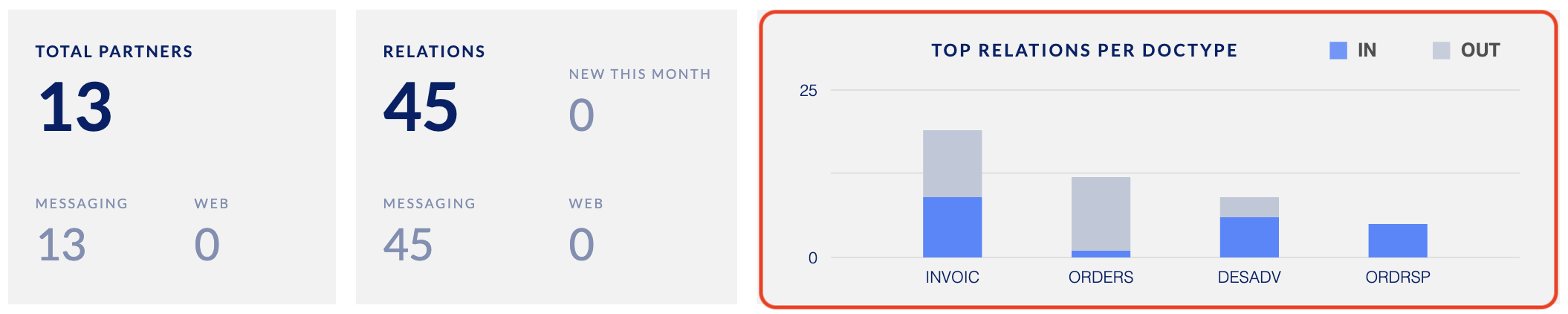
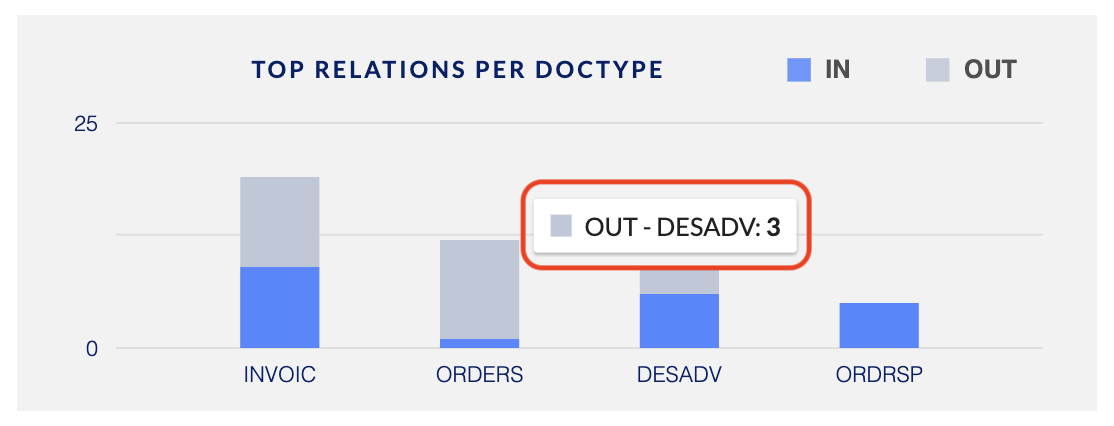
- Top relations by DocType: This graph shows the most applied EDI relations, displayed based on DocType as well as the direction the relation ("In" refers to your company being the receiver, whereas "Out" refers to your company being the sender). Additionally, when you hover over any of the lines in the graph, the raw number of EDI relations per DocType and direction are displayed, as shown below:
Moving down the page, the following information is displayed:
-
Partner: Your customer who has documents and messages going across the ecosio integration hub.
-
DocType and details: The message classification type that is converted when crossing the integration hub.
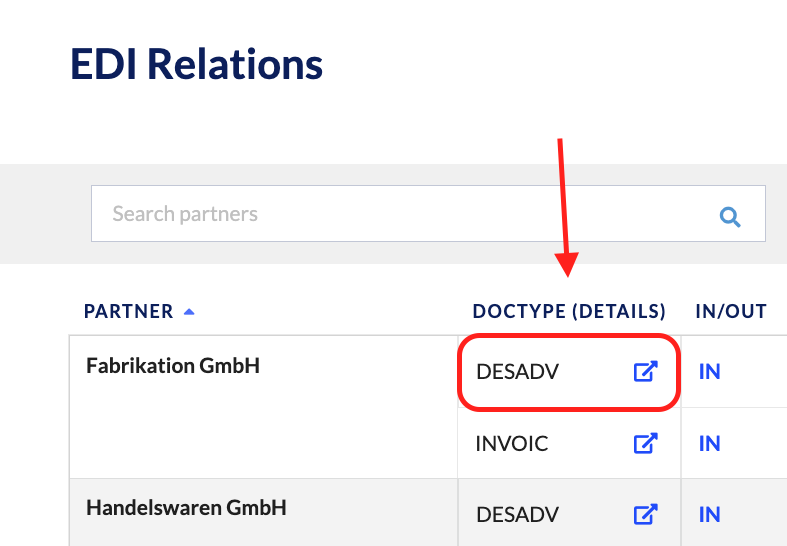
Additionally, when selecting the icon next to the doctype displayed, you’ll be sent immediately to the message overview with the appropriate filters that reflect all messages related to that EDI relation.
-
In/Out: The direction of the messages as it relates to the company (the column to the right of “IN/OUT”.
IN: Your company is the receiver of the message
OUT: Your company is the sender of the message -
Company: You, the customer, or sub-companies (if you have permission to view them)
-
Status: The current of the permission. They are as follows:
ALLOW: The permission is active and therefore messages can be sent across the ecosio integration hub.
ONBOARDING: The permission is currently being set up and finalised. Permissions are checked for the company for a matching document type during this state.
PARKED: The permission is fully stopped because you the customer state that you no longer want it. Therefore, exchange of messages and documents will not go to the final recipient, and therefore messages are not billed. -
Last updated: A timestamp of when the permission was last modified.
-
Services: The permission types which can be visualised across ecosio products and services. They include:
MESSAGING: The default permission for which users see messages inside the Monitor.
WEB: The permission designated when a partner relation employs the Flow product by ecosio.
IMPORTANTAdditionally, in ecosio’s enhancements to the EDI Relations menu entry, you’ll be able to visualise even more.
The following improvements will be available in the EDI Relations overview page:
- A column that suggests when the permission was first created.
- Charts and graphs showing a breakdown of your EDI relations.
- An overview of the total number of permissions.
- Users will be able to see if permissions have active users actually using it.
Additionally, users will be able to view details of all EDI relations, based on the “Services” as defined above.
The Flow details page will include the following:
- A user list including emails of your partners, and events they have or have not taken while navigating the Flow platform.
- Company-level events which have or have not been taken while navigating the Flow platform.
- The last 10 messages as it relates to that permission.
The Messaging details page will include the following:
- The last 10 messages as it relates to that permission.
- The person who made the last update to the permission.
- When the permission was created.
- Details on the DocType chosen.
What actions can you take in the EDI Relations overview page?
Inside the EDI Relations overview page, you can do the following:
-
Search based on partners
In the overview page, you can select the search bar, and all EDI partners will appear:
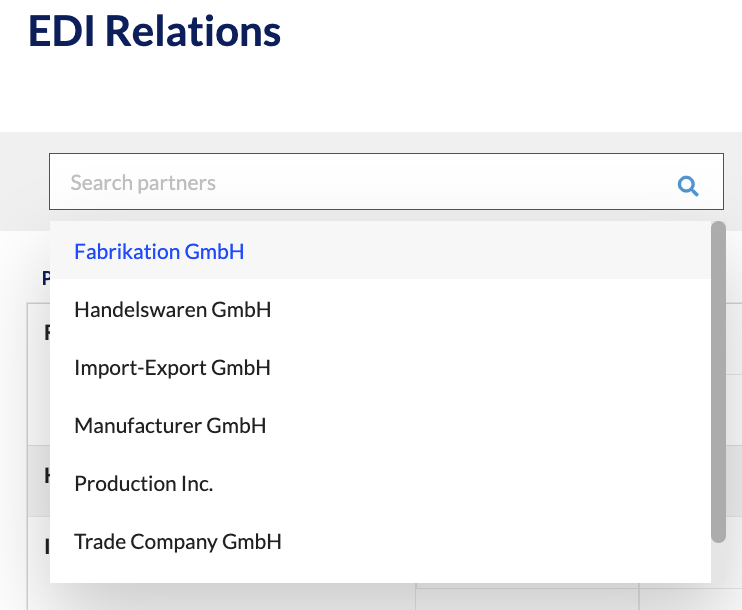
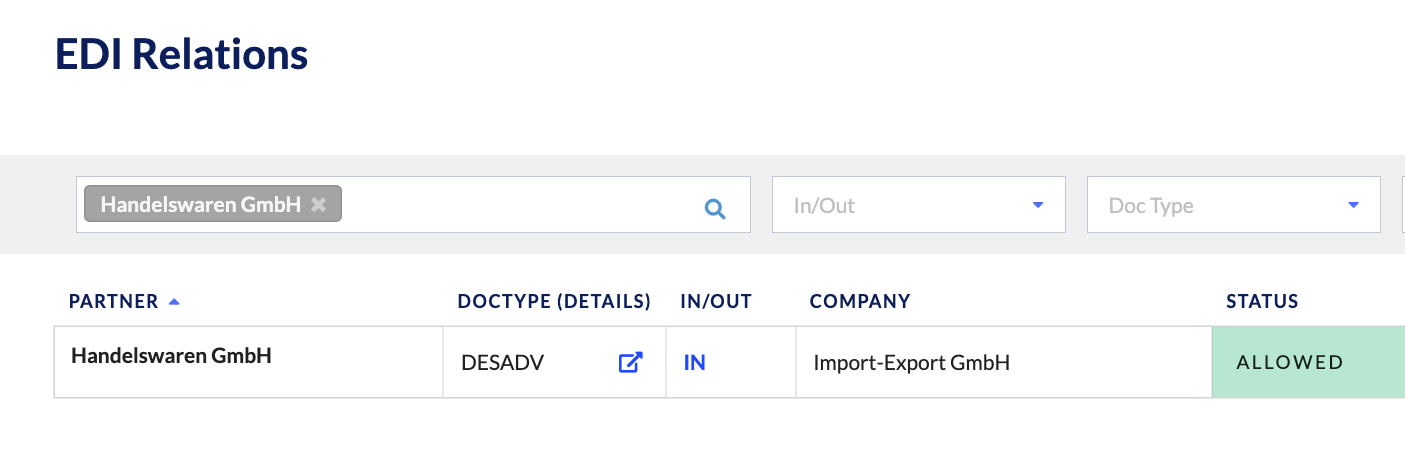
From there, once you select a partner (or multiple partners), all EDI relations mentioning the partners selected will appear on the overview page.
 Note
NoteThis search bar does not have the same functionality as full-text search in the Message Overview page, or other aspects of the Monitor. You can read more on full-text search to better understand the differences.
-
Filter based on message direction (IN/OUT), DocType, status, and services
You are able to drill down into your EDI relations by filtering according to each relations’ attributes. These attribute definitions can be found above. Additionally, you can reset your filters by clicking on the “RESET” button. Below is an example of what filtering looks like: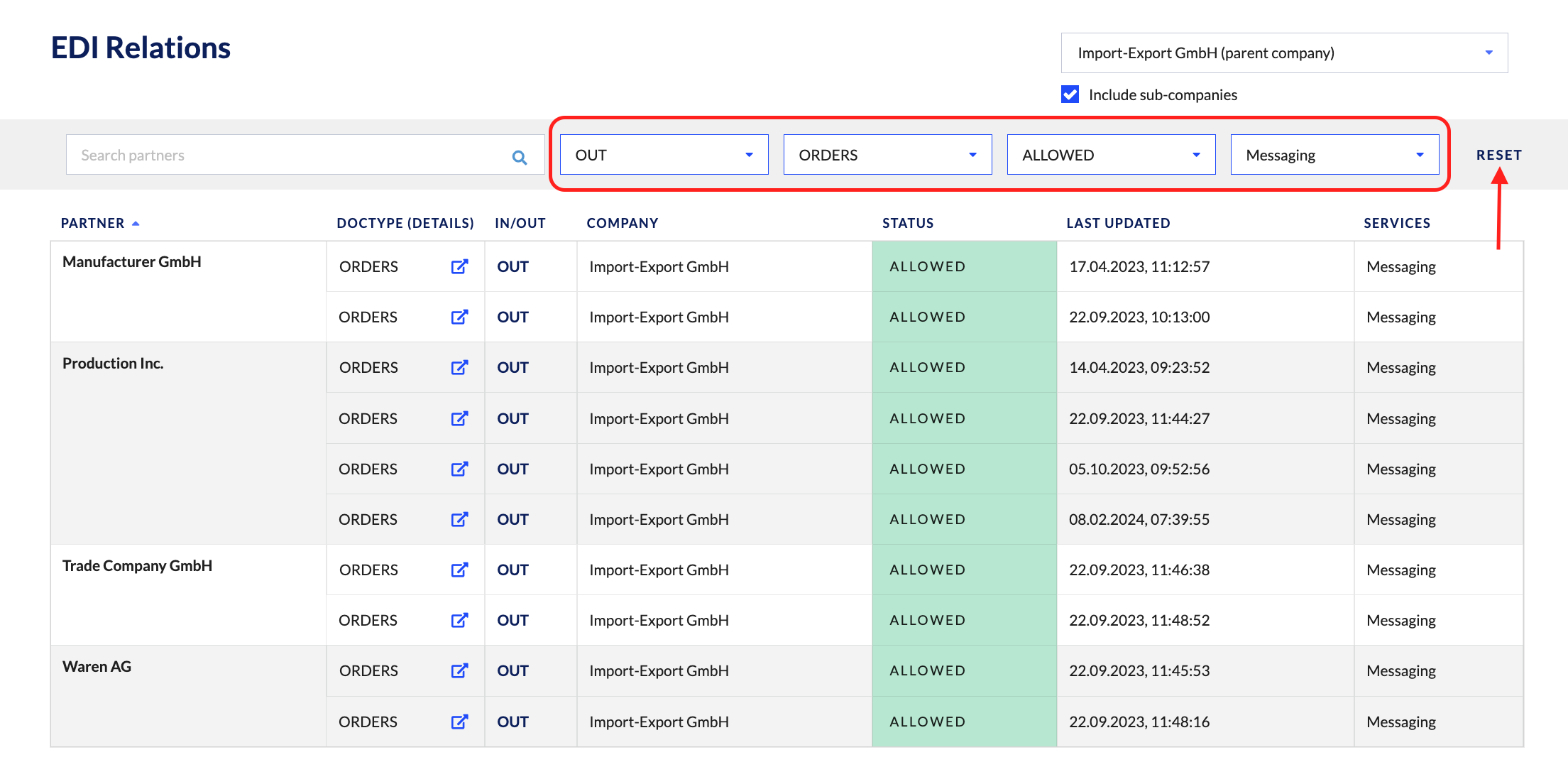
-
View EDI relations based on parent and sub-company structures
When switching back and forth between parent and sub-companies, you’ll be able to view EDI relations relevant to sub-companies. An example is shown below: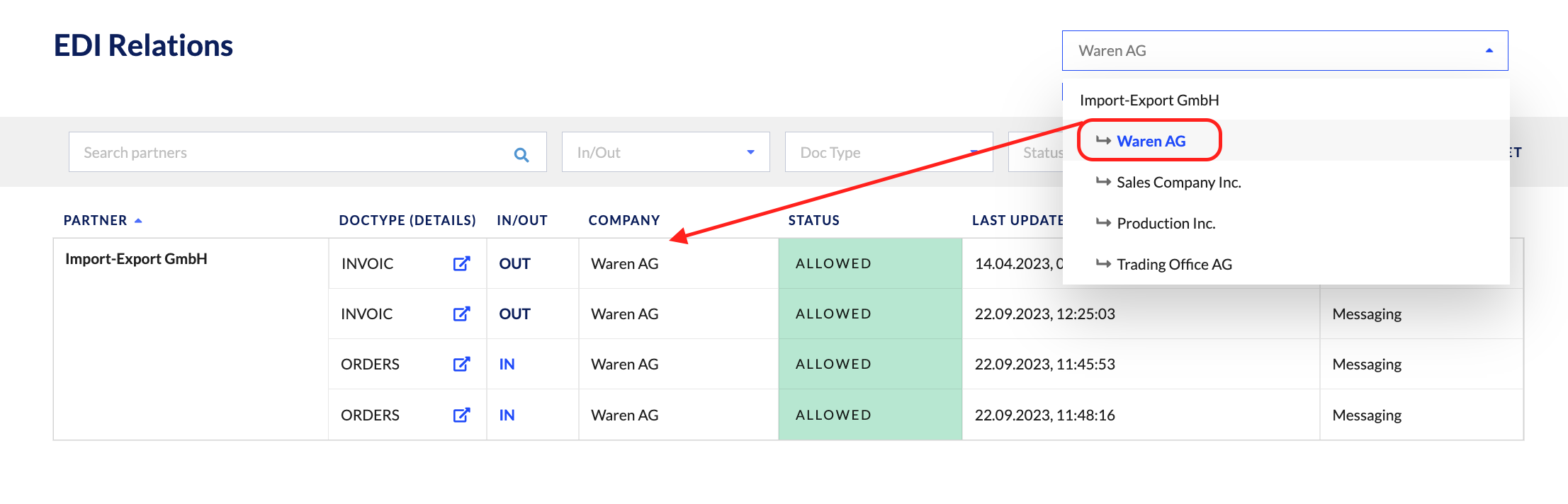
-
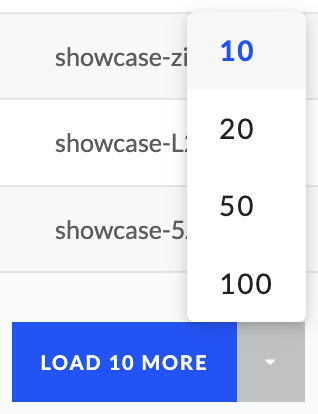
Paginate: You can view more EDI relations by selecting the pagination button below. Do note that the rows displayed are based on the "Company" column, and not the EDI partner.
IMPORTANTAdditionally, in ecosio’s enhancements to the EDI Relations menu entry, you’ll be able to do even more.
The following improvements will be available in the EDI Relations overview page:
- Filterable CSV downloads of EDI relations
- Searching by global location number (GLN) details to pull up partners.
Additionally, users will be able to act within the EDI Relations details pages of all EDI relations.
In the Flow details page, you will be able to
- Filter by events.
- Jump from this page to the Message overview page, in order to see all allowed messages due to this permission.
In the Messaging details page, you will be able to:
- Jump from this page to the Message overview page, in order to see all allowed messages due to this permission.
FAQs
When will the enhancements of EDI relations be available?
- These EDI relations enhancements are already under development. Users will see all EDI relations enhancements at some point in Q4 2024 at the latest.
Updated 9 days ago