
View message details
Viewing message details is a crucial piece of the Monitor’s main functionality. Its purpose is to provide full EDI transparency for both IT and business users.
Introduction
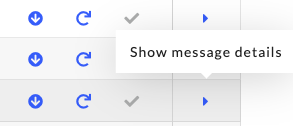
Viewing message details is a crucial piece of the Monitor’s main functionality. Its purpose is to provide full EDI transparency for both IT and business users, and can be accessed by viewing the message overview page and clicking on the blue arrow on the far right-hand side of the page:
Prerequisites
- When a company begins using ecosio products and services, a Monitor configuration will be setup by our Onboarding & Operations team shortly after.
- All users can view messages details inside the Monitor; in order to re-send messages directly from the Monitor, users must also have the “Messaging Operations” permission.
Step-by-Step Guide
How can you view message details?
Message details can be accessed by viewing the message overview page and clicking on the blue arrow on the far right-hand side of the page:
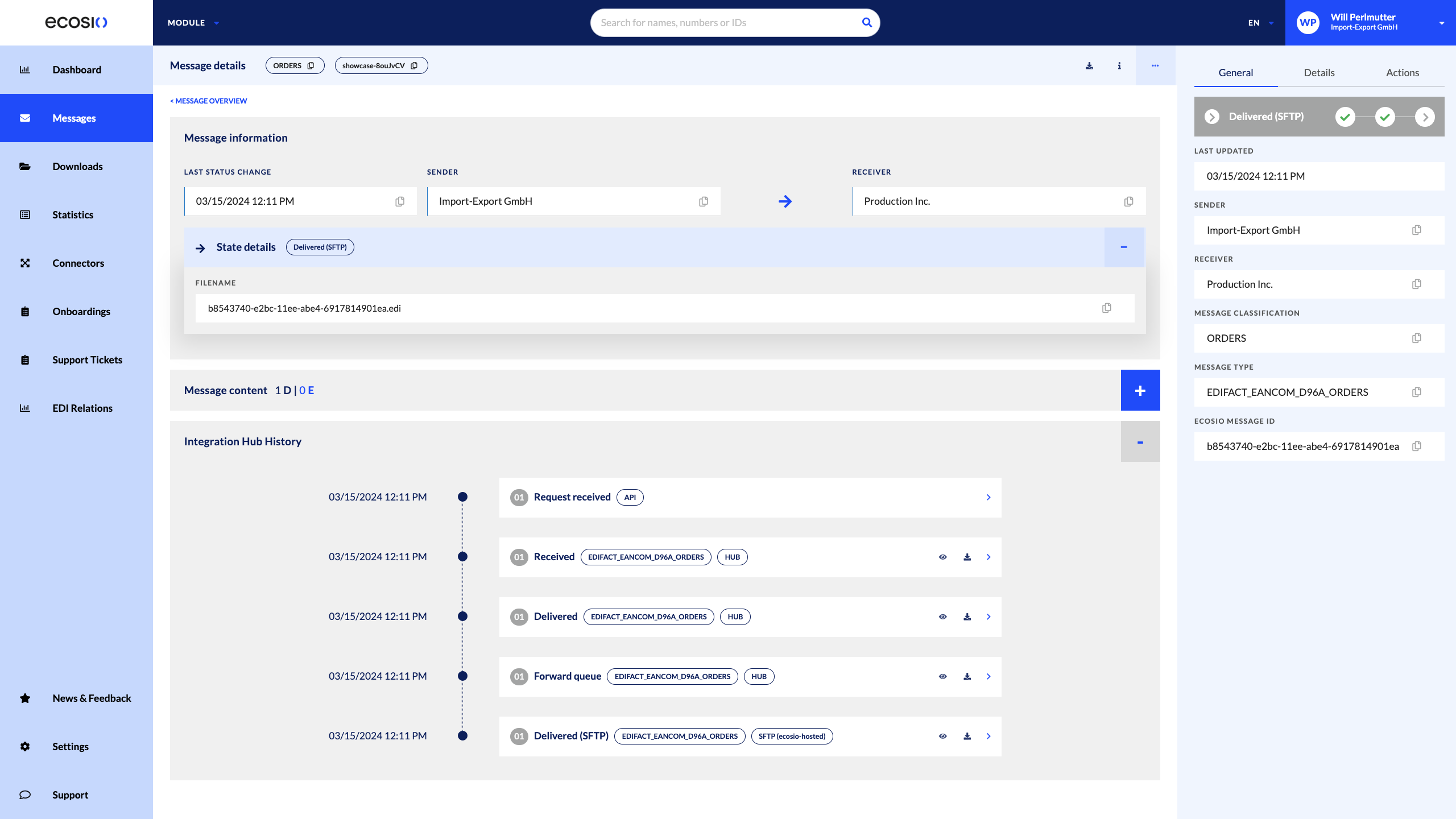
In the message details page, users can visualise all information available on the message overview page.
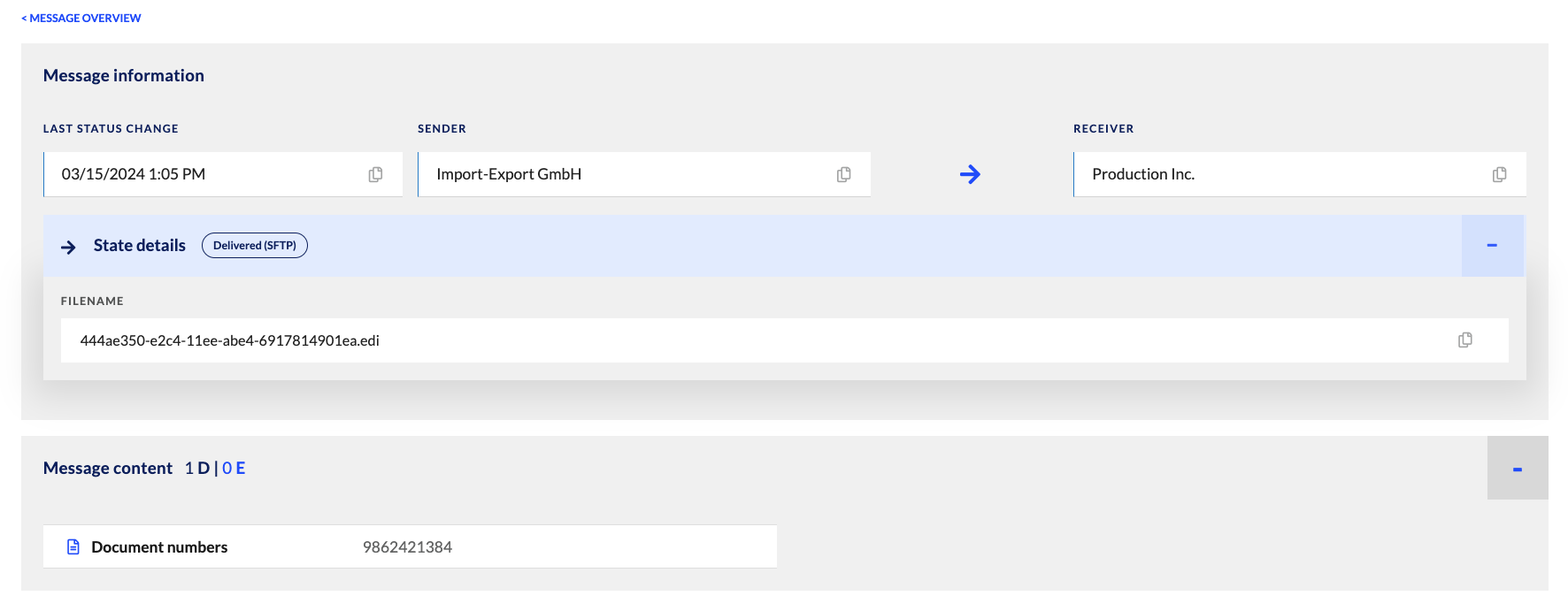
Additionally, users can see:
- The integration hub history of the message as each status is passed.
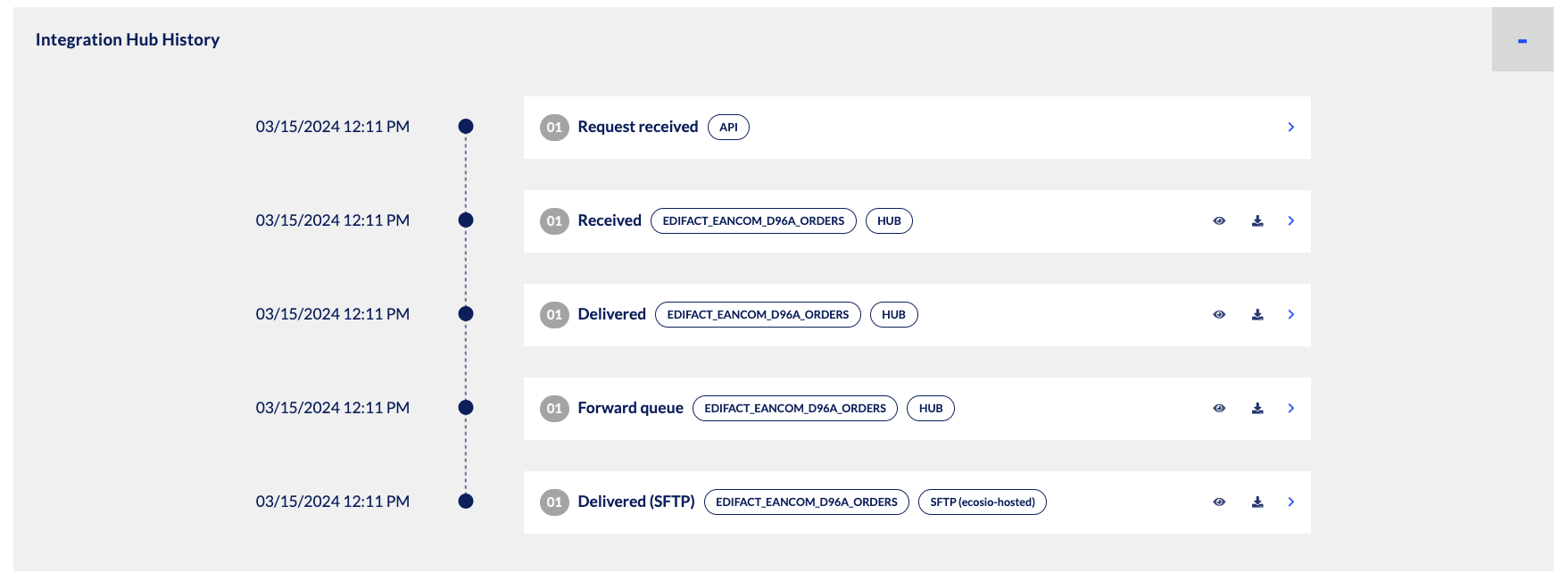
- Details of the message at each state before the status changes.
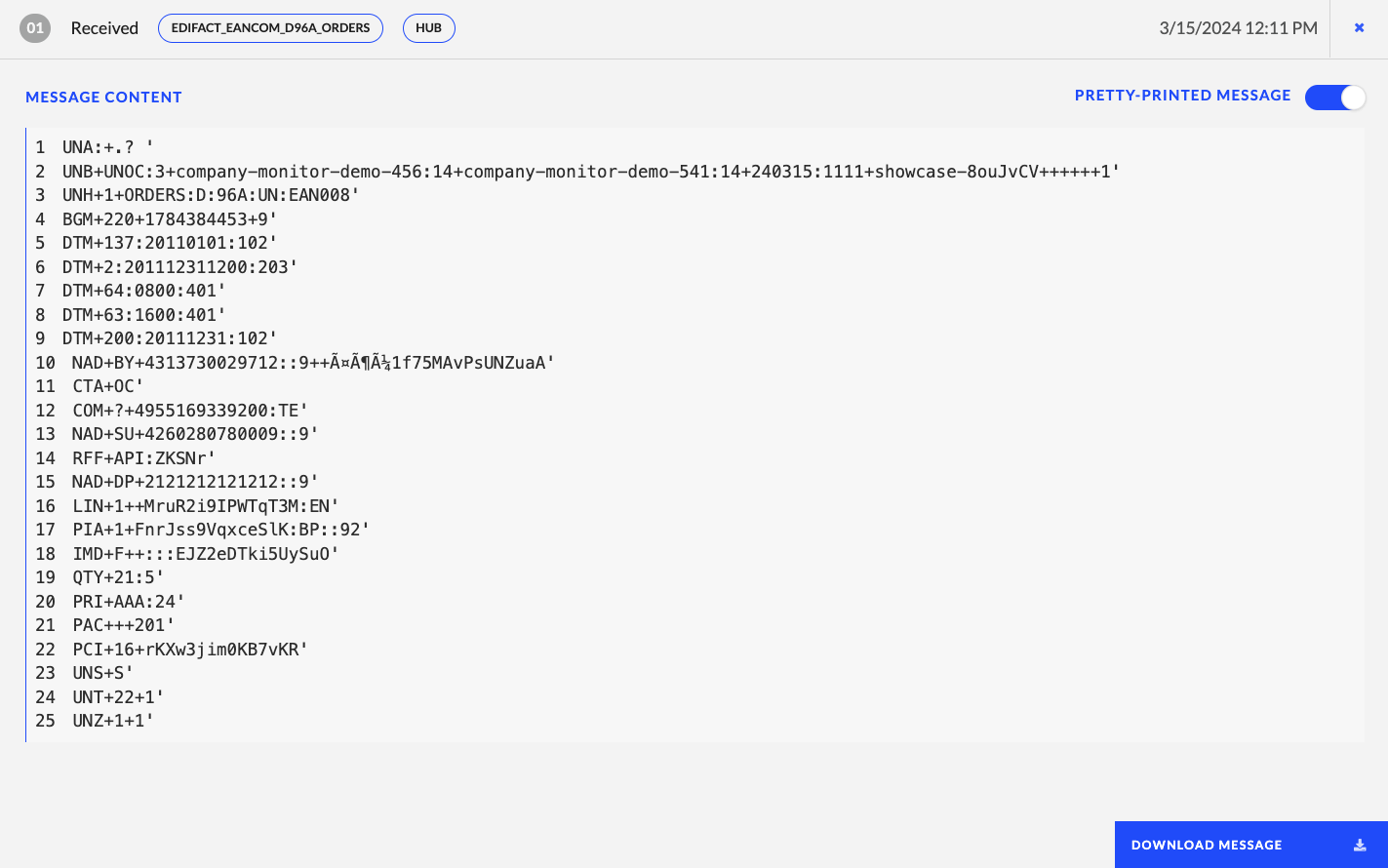
This includes:
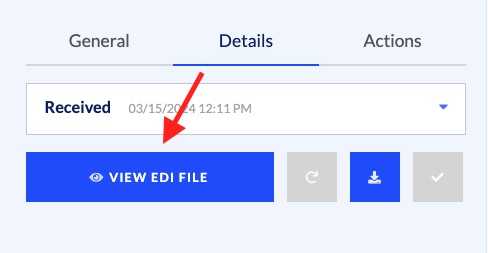
- The EDI file (message content) which can be seen by:
- Clicking on the “eyeball” icon in the “Integration Hub History” section

Viewing “Details” can be done on the right-hand side of the page:
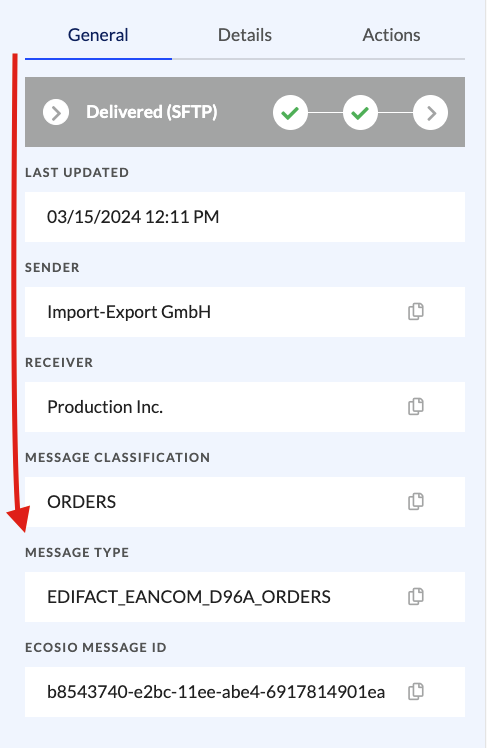
The message and document type which can be seen by:
- Hovering over the first label after the status in the “Integration Hub History”

- Viewing “General” on the right-hand side of the page
- The application responsible for moving the message along the integration hub

Importantly to mention, the following states can be applied to a message as it passes through the integration hub. More information on this can be found here.
Updated 10 days ago