
Download messages
Downloads are an essential feature for our Monitor users. It puts full control of their messaging information in their hands, and allows you as a user to act on your EDI operations from a source of truth.
Introduction
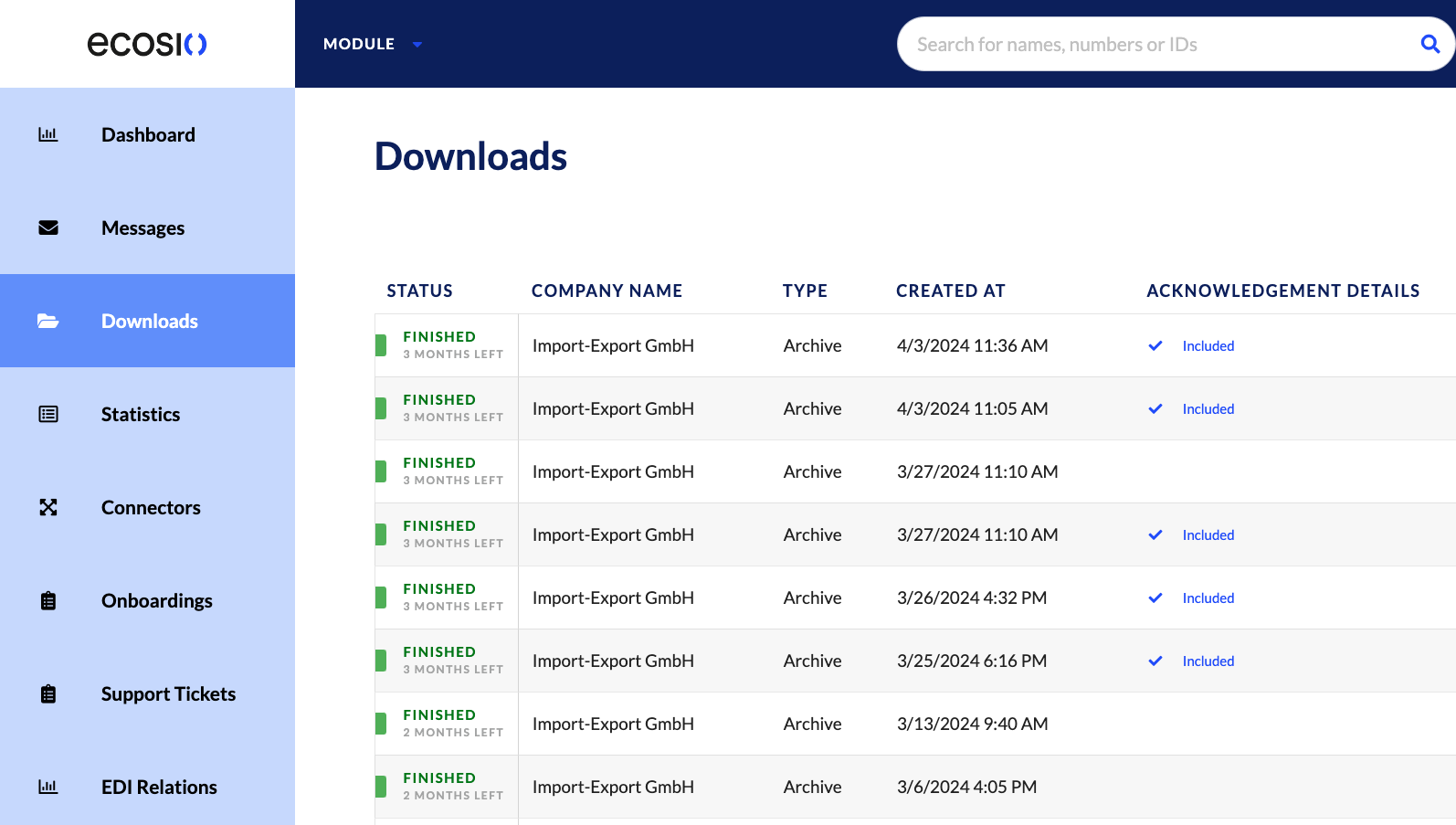
Downloads are an essential feature for our Monitor users. It puts full control of their messaging information in their hands, and allows you as a user to act on your EDI operations from a source of truth. The downloads feature can be found on the left-hand menu entry shown below:
Prerequisites
- In order to have access to downloads, you must have the messaging operations permission.
- Archives are available within the Monitor for a total of 3 months; after that, these archives are no longer displayed in the Downloads section.
Step-by-Step Guide
There are a few ways to select messages to messages within the Monitor:
- Directly within the Downloads menu entry
- Via the Message Overview page
- Via the Message Details page
Directly within the Downloads menu entry
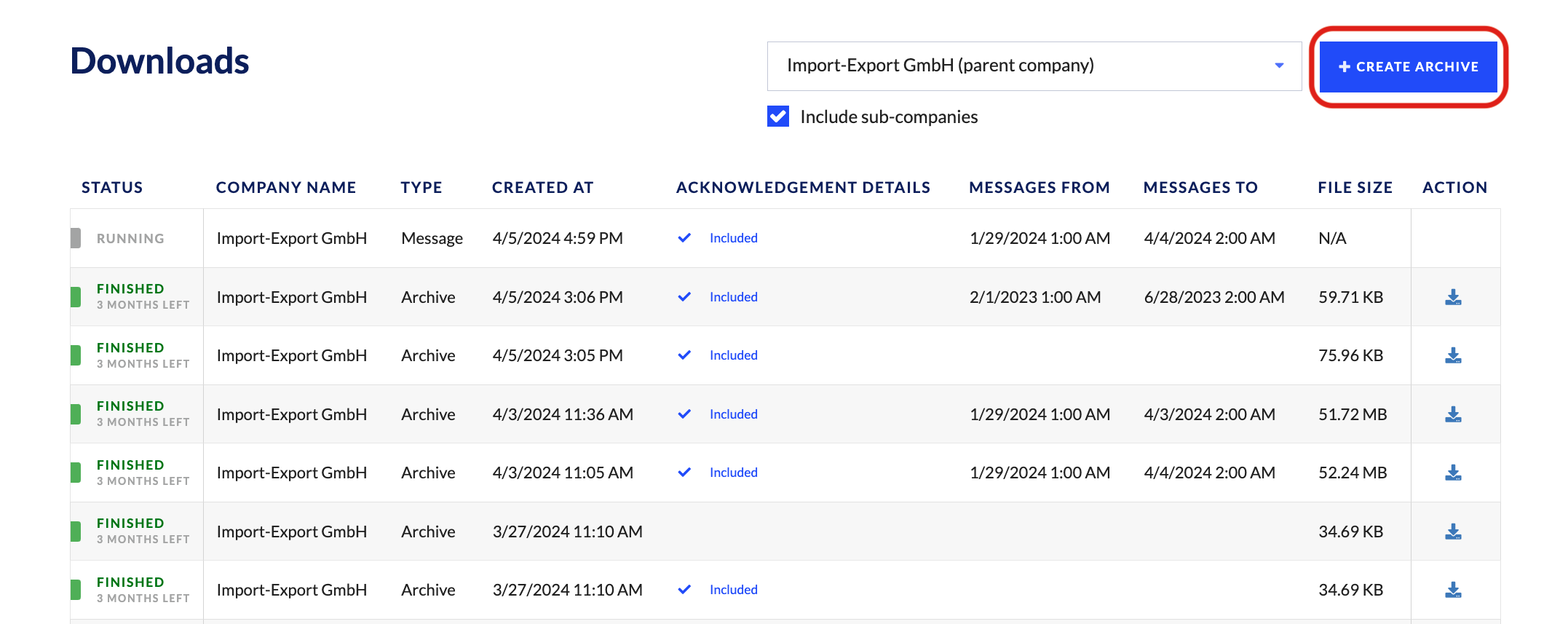
You can all messages within a certain date range from the Downloads menu entry. By doing so, you’ll want to select the Create Archive button in the top right-hand corner of the page:
From there, you’ll be asked to select a date range for the archive, as well as if you’d like to receive acknowledgements within the .zip file:
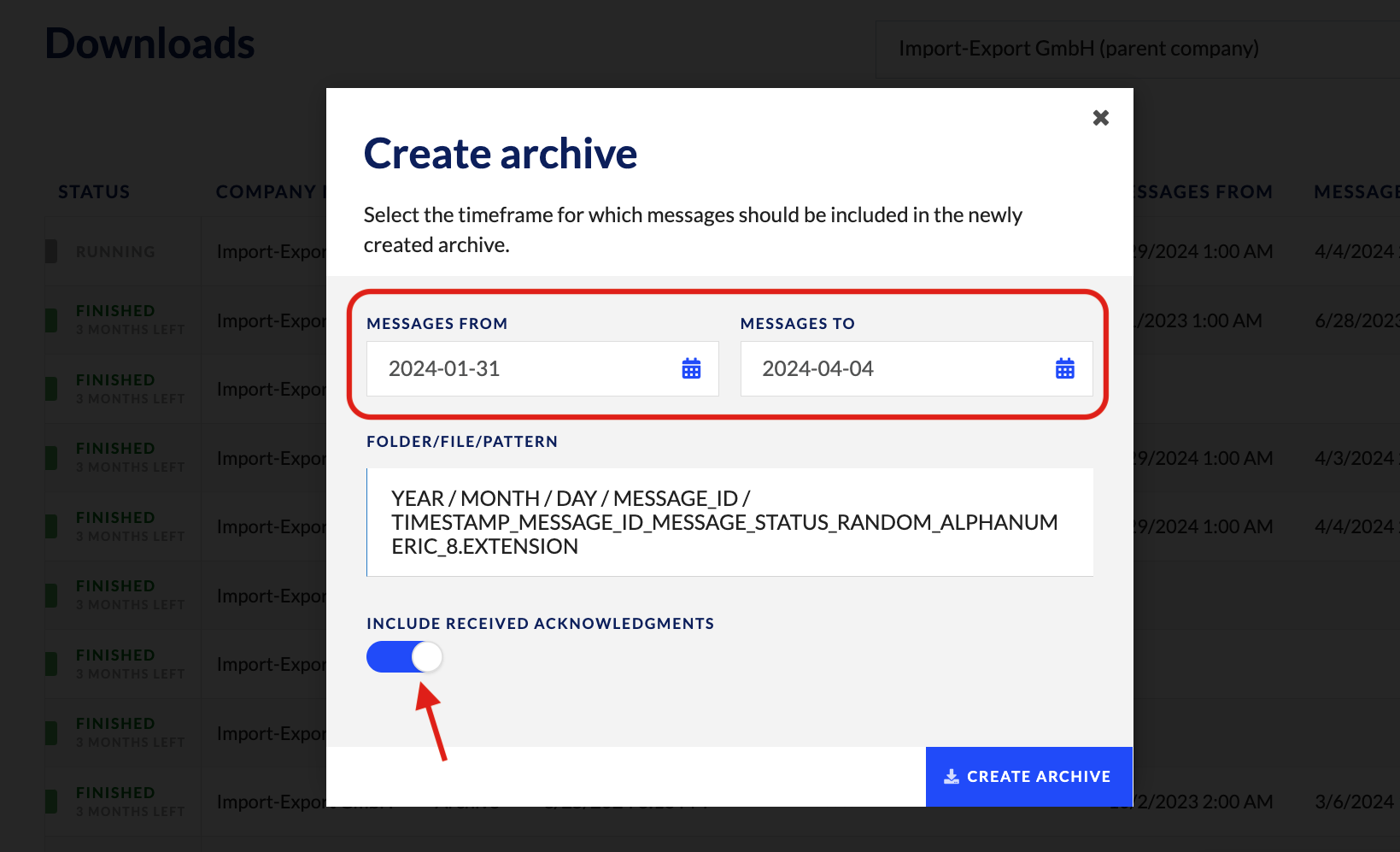
WarningOnly a specific set of message statuses are included in an archive; all others are omitted.
When acknowledgements are not included in the archive, the following statuses are included:
- RECEIVED
- DELIVERED
- SIGNED
When acknowledgements are included in the archive, the following statuses are included:
- RECEIVED
- DELIVERED
- SIGNED
- FORWARDED
- EXCEPTION
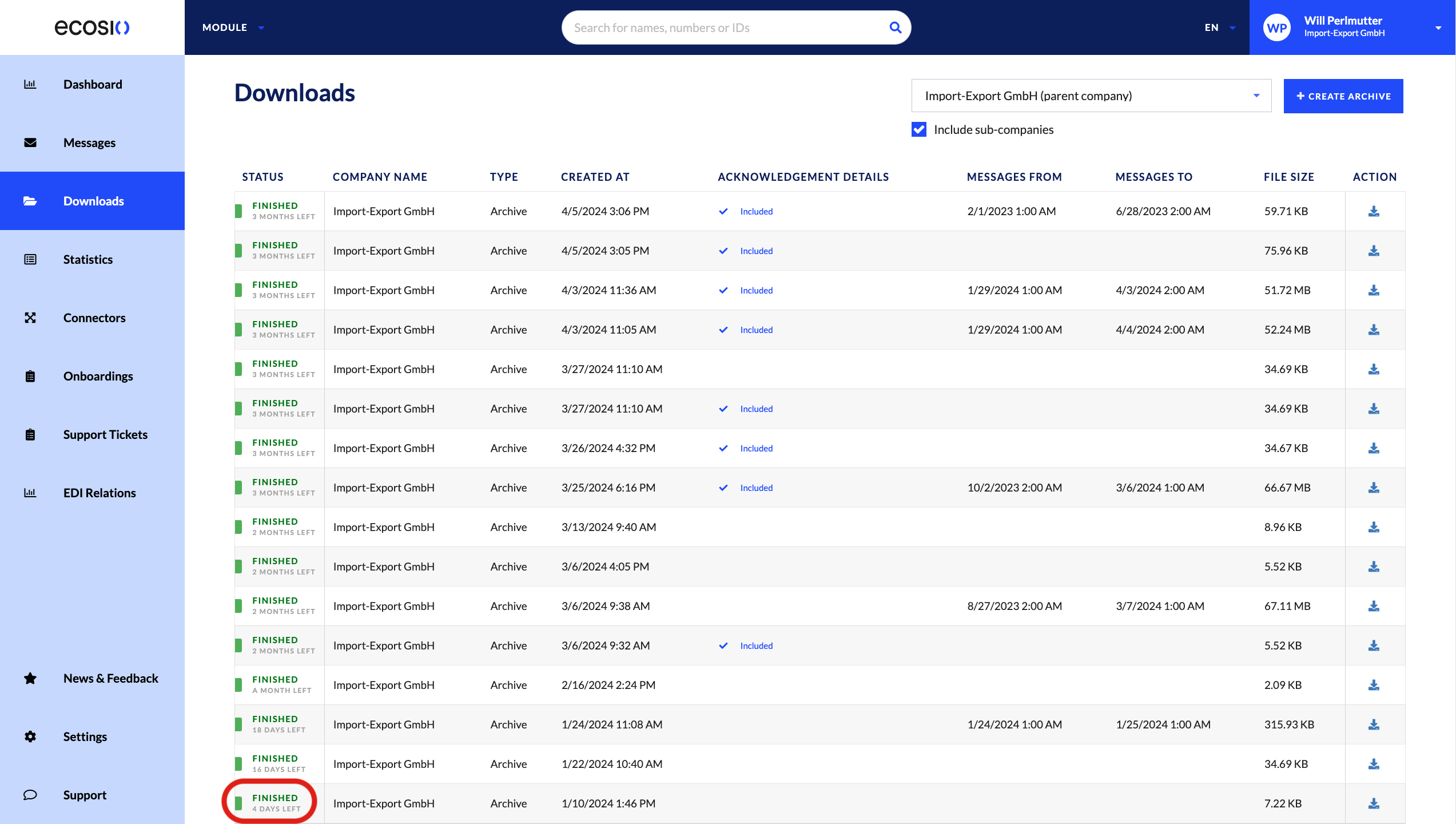
Once you have created the archive, it will appear in the Downloads menu entry of the Monitor (see image below).
WarningIf the date range you’ve selected includes a large amount of messages and/or documents, it may take time for the archive to complete (see image below). This is because preparing the archive, preparing the download, and downloading the .zip file of messages happens asynchronously inside the Monitor. Be patient, and your archive will soon be available.
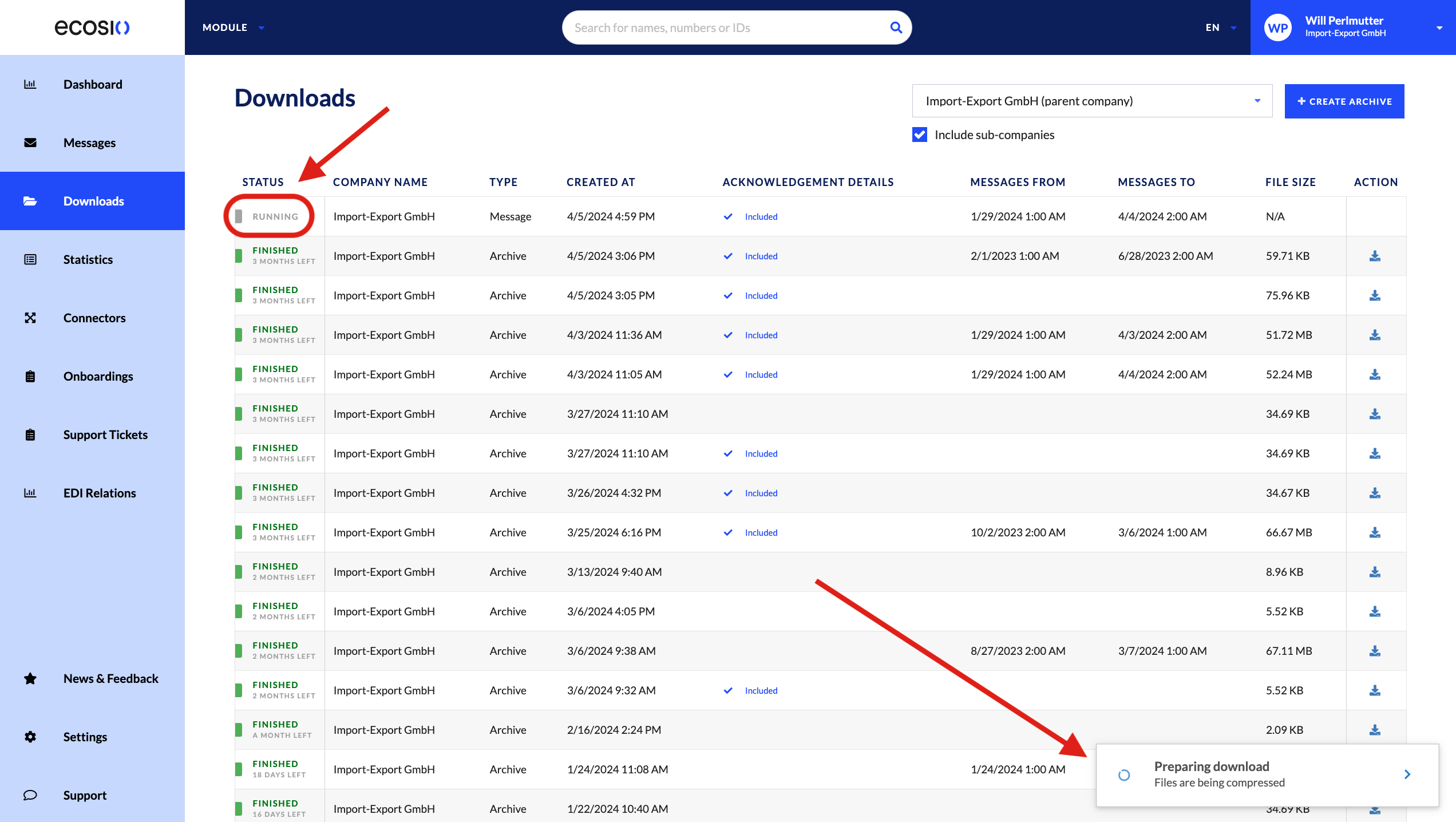
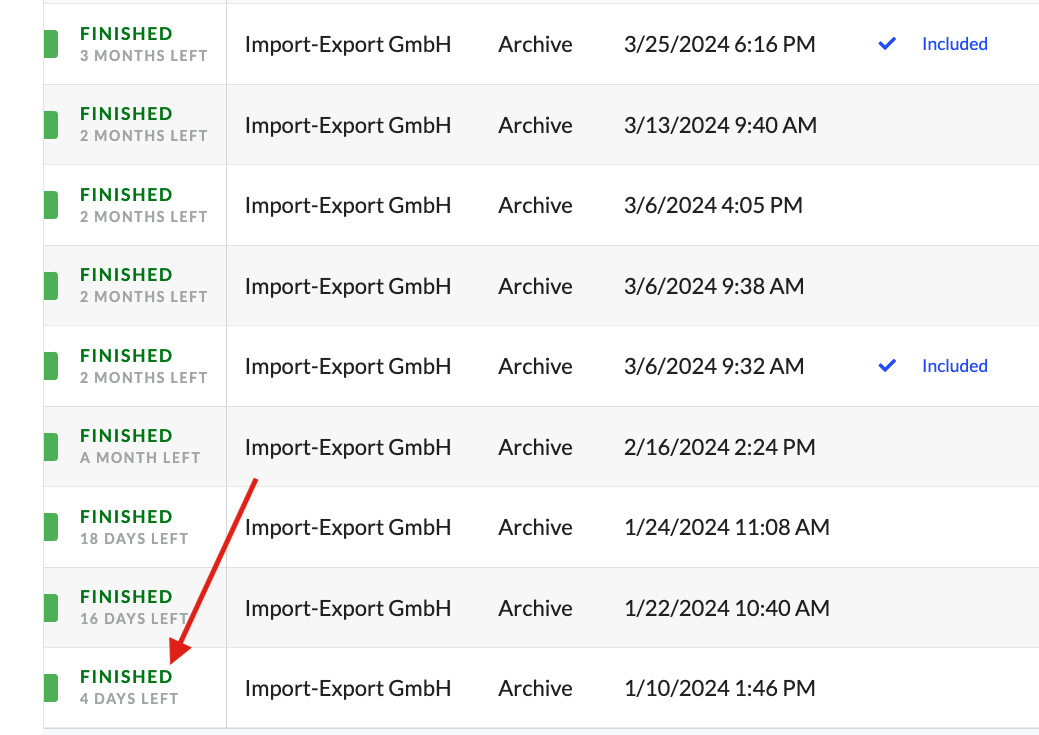
From there, your archive will be available for further download for 3 months after you have created it. The time you have left to take action on the archive is shown in the “Status” column:
Via the Message Overview page
You can download messages in batch by selecting messages from the Message Overview page.
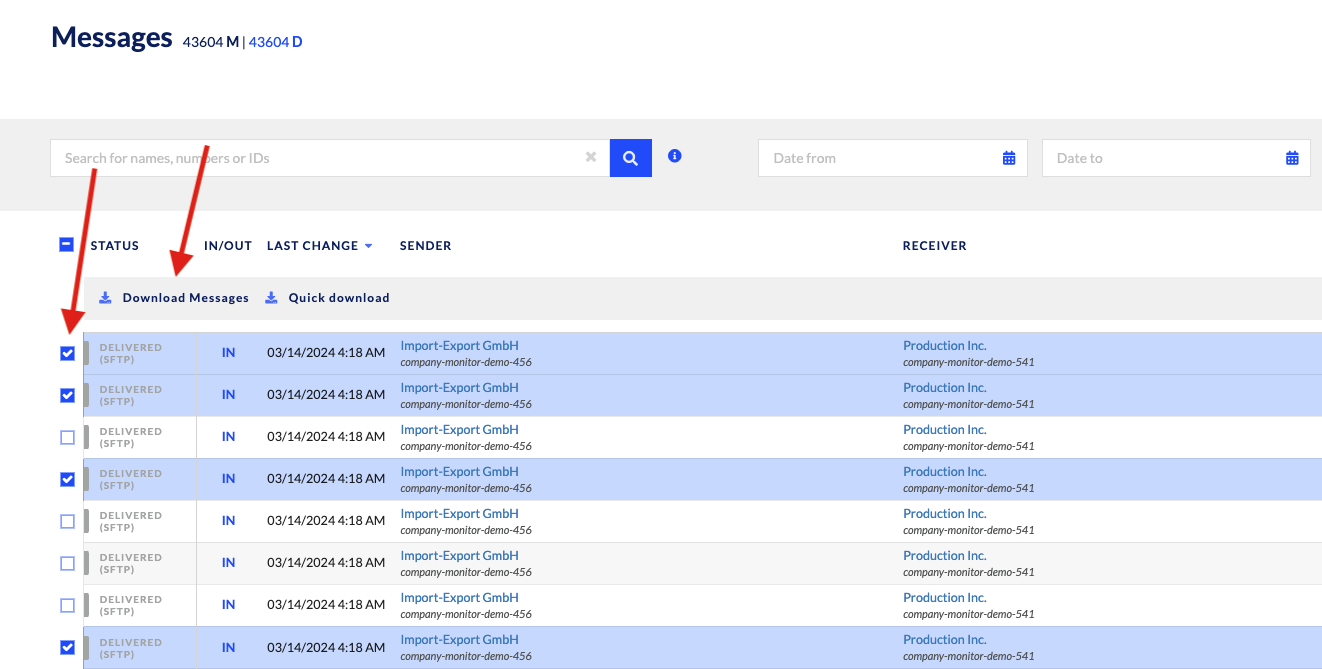
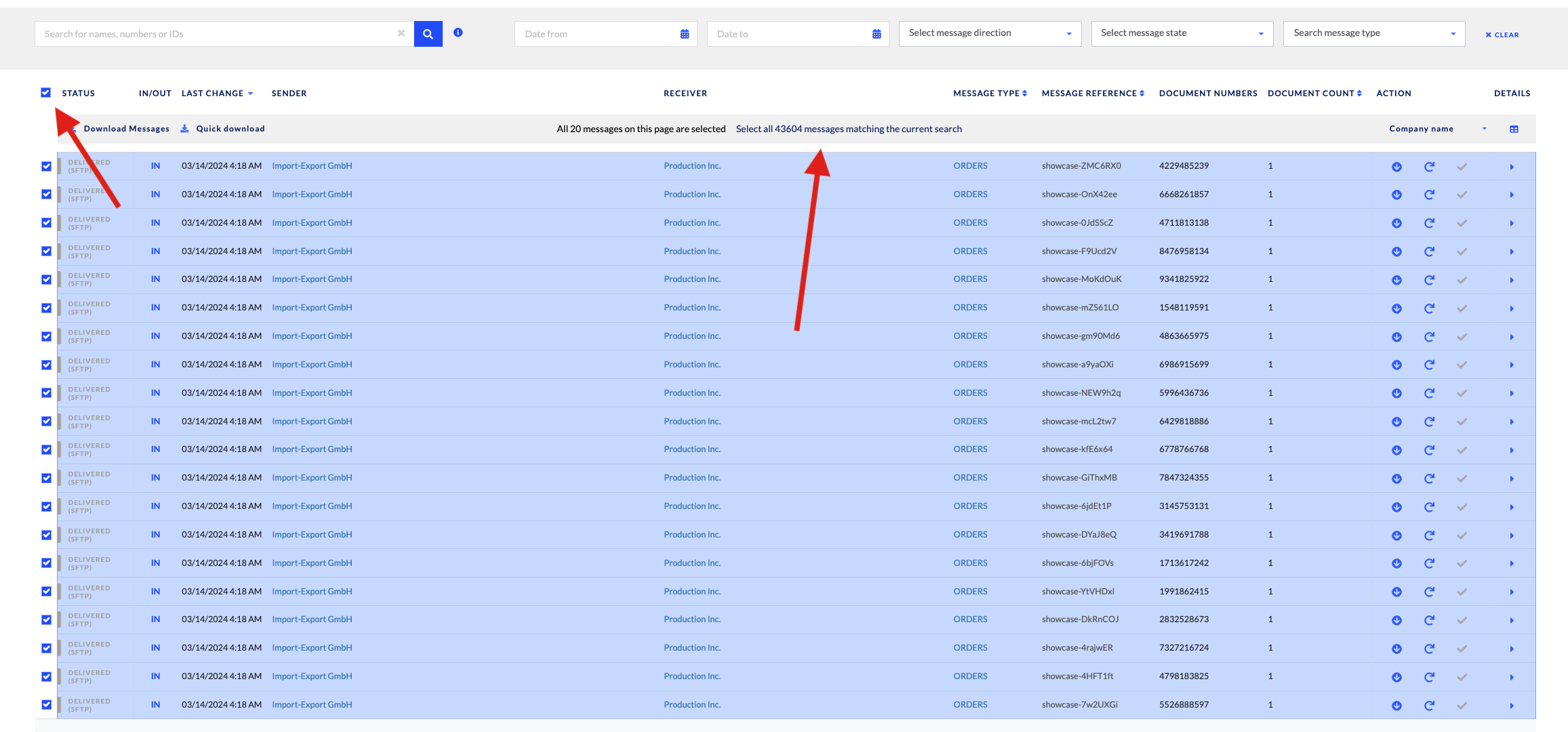
By selecting the tick box next to “STATUS”, you will select/deselect all messages displayed. Additionally, if you’d like all messages to be selected for the current search, the option is available in the middle of the page.
When downloading messages, do note that each downloaded message contains the message in state RECEIVED (as it was received on the hub), state DELIVERED (as it was sent out), and state SIGNED (if applicable).
Messages can be viewed and filtered according to the date they were sent or received, the message direction, the message state, and the message type. All of this can be done through filtering capabilities as seen below:
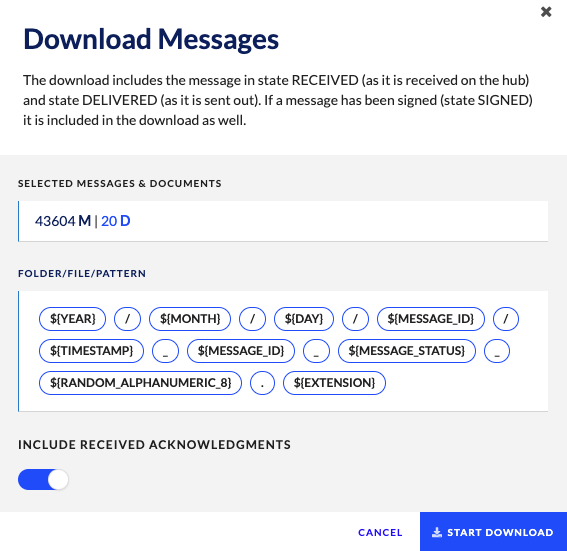
Additionally, you can adjust the “FOLDER/FILE/PATTERN” structure in the “Advanced” Company settings.
You can include received acknowledgements of messages in each downloaded message as well, although this is optional.
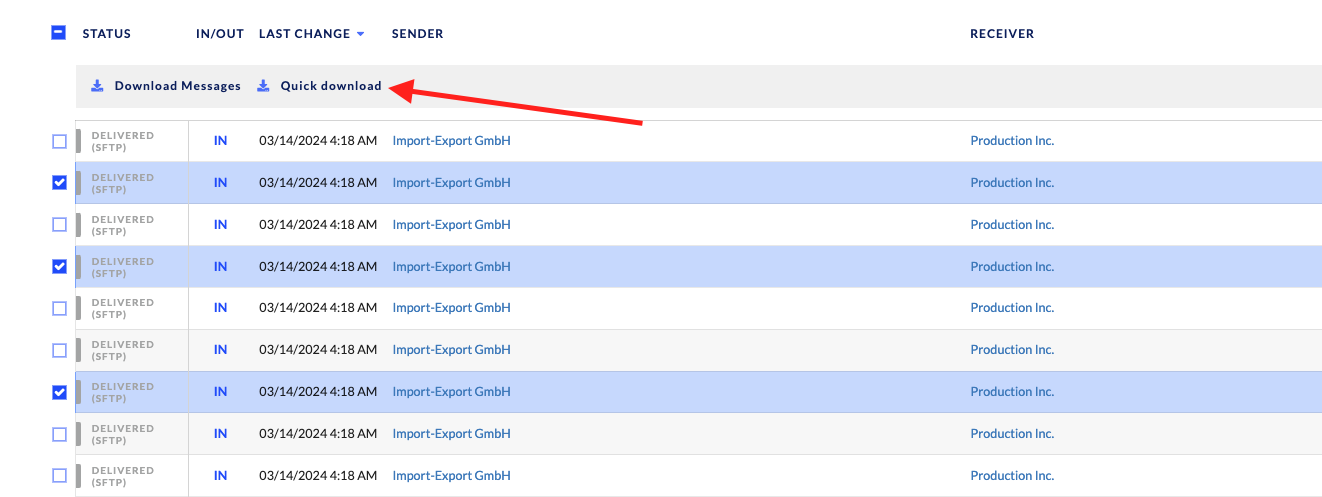
Once the download begins, the selection is also available in the “Downloads” option on the left-hand menu for archiving purposes. For more information, see the documentation above.
Quick Download
You can also select messages in bulk and select Quick Download.
By doing so, two key functionalities are left out compared to the “Download Messages” function:
- Folder/file/pattern
- Including received acknowledgements
The “Quick Download” selection is chosen to get the most raw version of the message contents in order to view them as such.
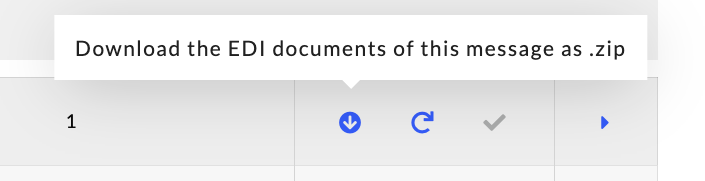
Download Zip of EDI Documents
This option allows for the same functionality as a “Quick Download”, but for 1 message at a time.
Via the Message Details page
You can download messages individually from the Message Details page.
Download Message Content
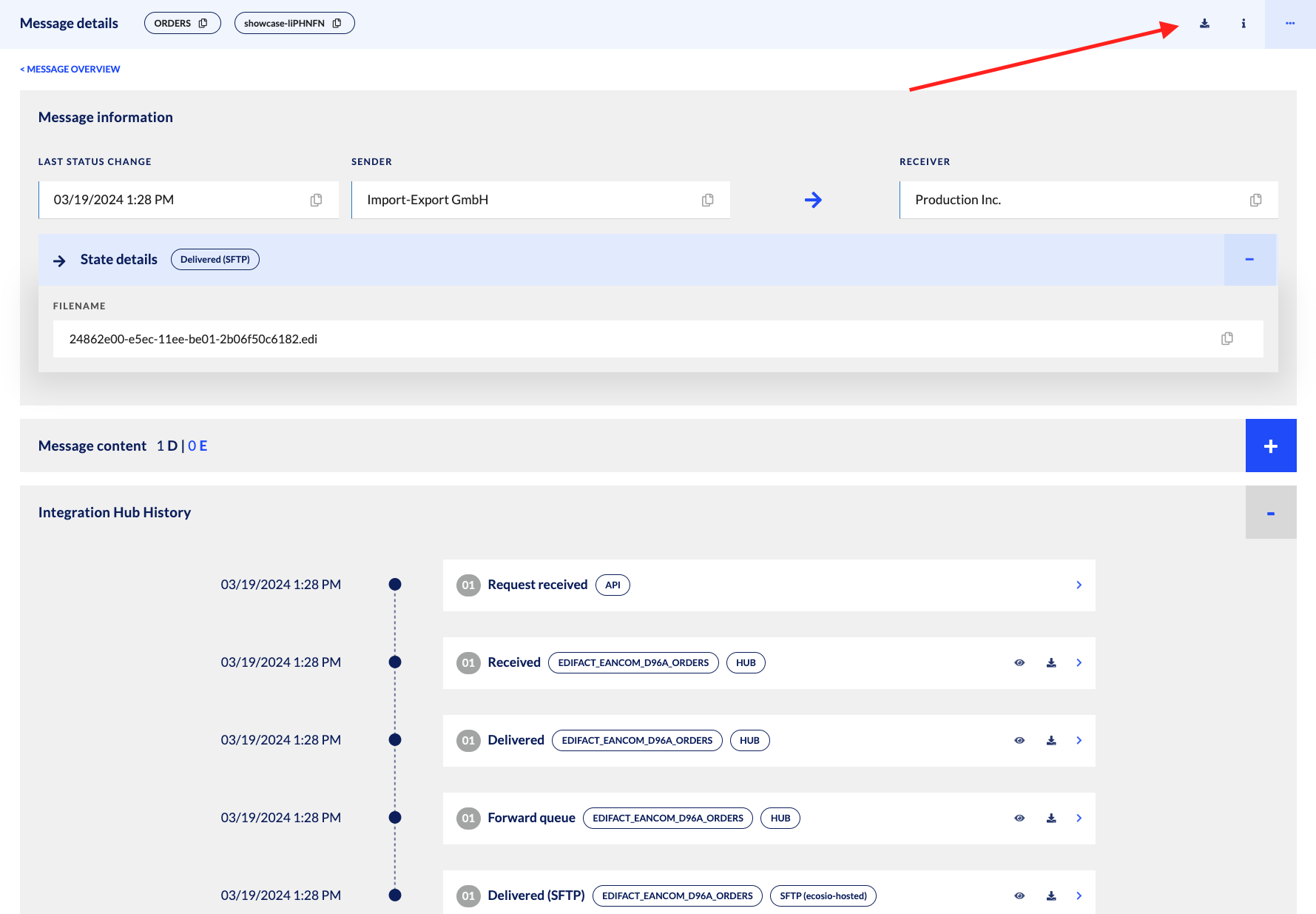
By selecting the “download” icon at the top of the page, a full download with a suggested “FOLDER/FILE/PATTERN” structure, as provided or defined in the “Advanced” Company settings.
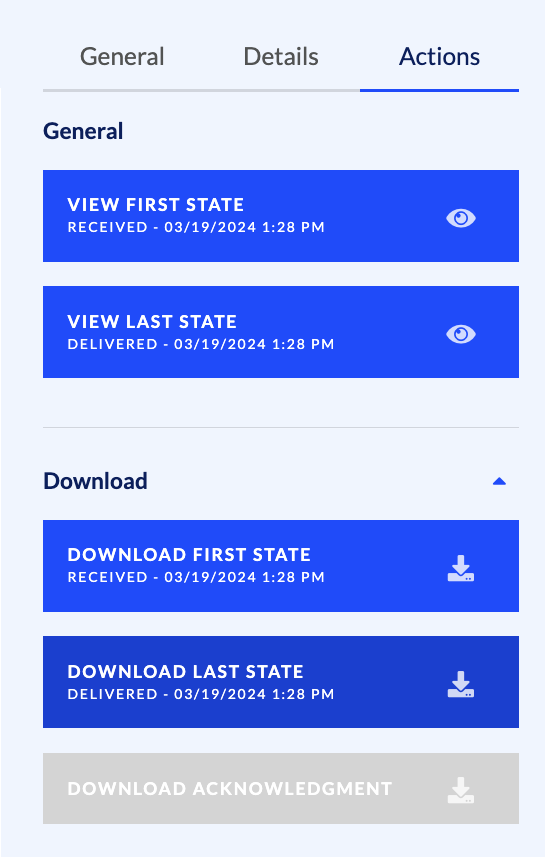
“Quick Download” Message Content
You can download messages content from the message details page. Message content can be downloaded in:
- Its 1st or last state (select Actions on the right-hand side of the page)
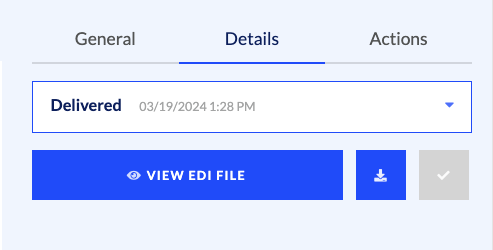
- All other states (select Details on the right-hand side of the page, the state you’d like to view, and then the download icon)
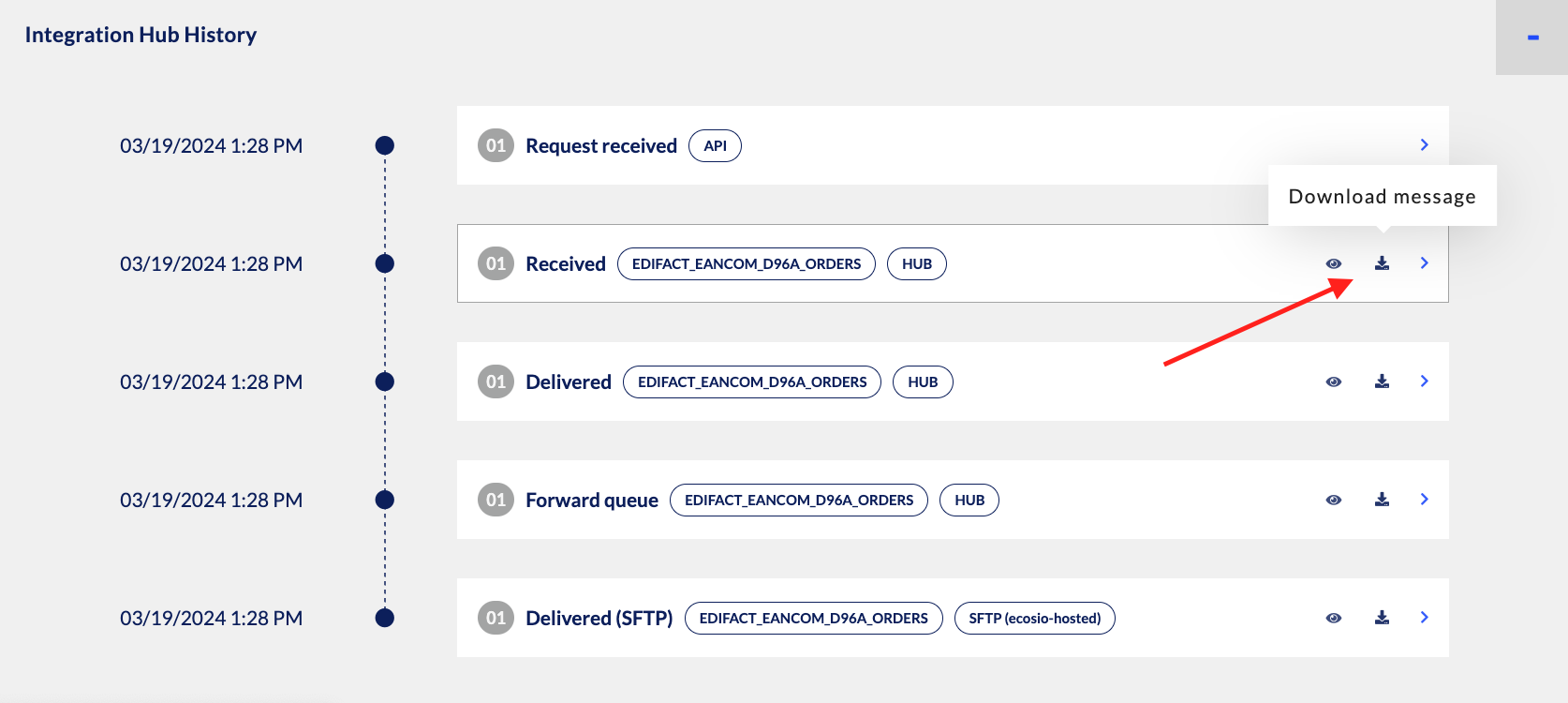
- At every step in the message’s integration hub history (by clicking the “download” icon as shown below):
FAQs
What is the difference between creating an archive versus downloading batch messages from the message overview page?
- The only difference is the filtering mechanism in the message overview page. By doing this, you can have more control over which types of messages, their statuses, and directions you’d like to have a download for.
- A filtering mechanism inside the Downloads menu entry currently does not exist.
What are acknowledgements?
- If a message has been forwarded by ecosio with a connector that supports acknowledgement of receipt , that raw acknowledgement will be contained next to each aforementioned message file in the download.
Is this downloads page intended to be used for legal and compliance purposes?
- No. This downloads page is rather intended for users to be able to go download a bundle of messages from a specific date range over a period of time.
Updated 10 days ago