
Add a partner user
You can add a partner user to your company or sub-companies to give them access.
Prerequisites
Before you can add a partner user, contact your ecosio Integration Engineer to set up an ERP partner relation for your company. You must provide the email addresses of the partner users you want to add.
Set global permissions
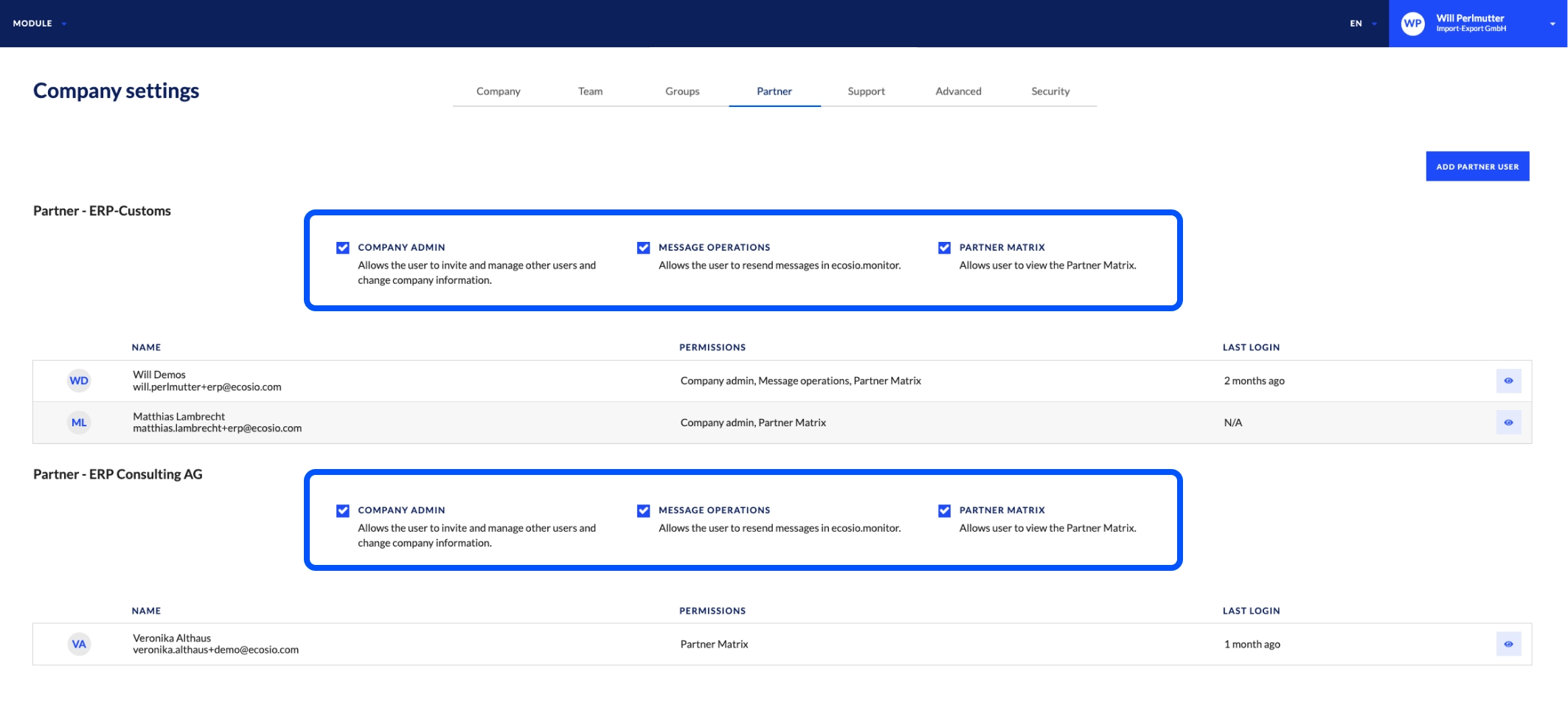
You can assign global permissions to a partner so that every user will have those permissions, regardless of whether they are assigned to the user.
To set global permissions for a partner sub-company:
- In the Monitor, go to the company settings by doing one of the following:
- From your user menu, select Company.
- Select Settings from the sidebar.
- Select the Partner tab.
- In the partner sub-company’s section, select the checkboxes of the permissions you want to give to all users.
Add a new partner user
To add a partner user:
- In the Monitor, go to the company settings by doing one of the following:
- From your user menu, select Company.
- Select Settings from the sidebar.
- Select the Partner tab.
- Select Add partner user.
- Enter the email address of the partner user you want to add. The email address of the user must have been added by ecosio to the ERP partner relation.
- Select the permissions you want to give the partner user.
- Select Save.
After you add the partner user, the ERP partner user can switch their view to access your Monitor instance.
Updated 11 days ago
Did this page help you?