
View message statistics
The Statistics Details page provides drill-down possibilities for your EDI operations, including billed messaging operations and which partners sent and received messages from you via ecosio.
Introduction
The Statistics Details page provides drill-down possibilities for your EDI operations, including messaging operations and which partners sent and received messages from you via ecosio.
You can find the Statistics Details page by selecting the “Statistics” button on the left-hand side of the page, as shown below:
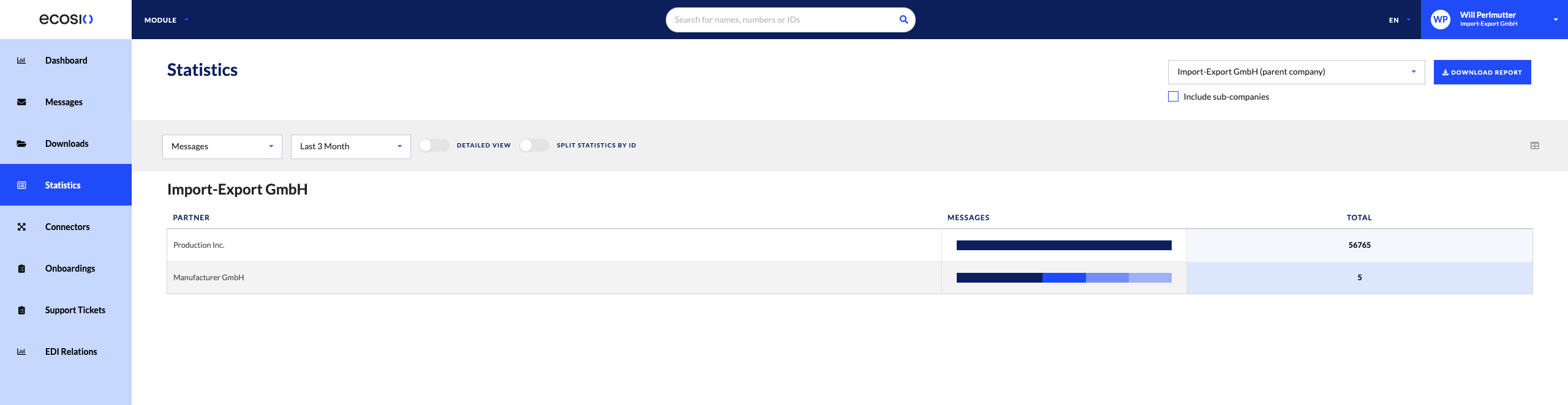
Statistics in this page are available from April 2023.
WarningMessages and documents in this Statistics Details page are based on messages billed.
A billed message is one that has been forwarded from the ecosio integration hub. If a message does not have this status or beyond applied to it the Message Overview page, it is not considered billed and will not appear in the Statistics Details page.
Prerequisites
The statistics details page is available to all permission types, as described in the company settings and below:
- Company admin: allows the user to invite and manage other users, as well as change company information.
- Message operations: allows user to resend messages inside the Monitor.
- Partner matrix: allows users to view the partner matrix inside the “Onboardings” section of the Monitor.
Step-by-Step Guide
Once you have accessed the statistics details page, the default view is as follows:
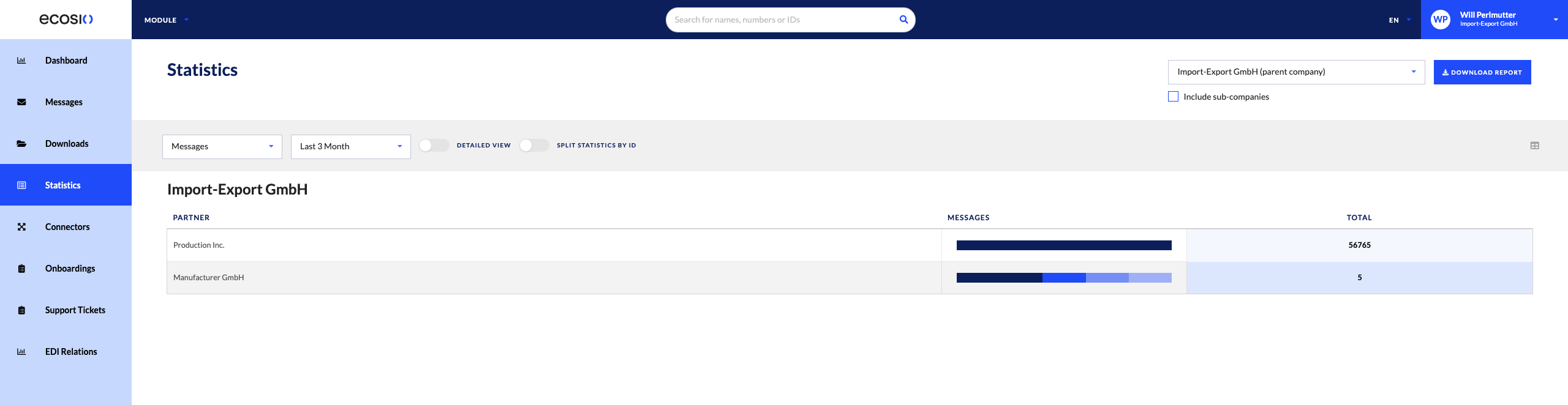
You will be able to visualise all message and document stats from the previous year; this means that no matter which time period in the future we are referencing, you will see all data from the previous year, moving up to the present
Additionally, all messages and documents displayed here are billed from ecosio (these messages have been forward from the ecosio integration hub), which is slightly different from the statistics displayed in the Dashboard.
You can also adjust statistics according to the parent or sub-company, depending on which company you’ve been assigned to. For more information on how this operates, please see the Parent and Sub-Company Structure documentation.
Described below are the various things which can be done and visualised inside the Statistics Details page.
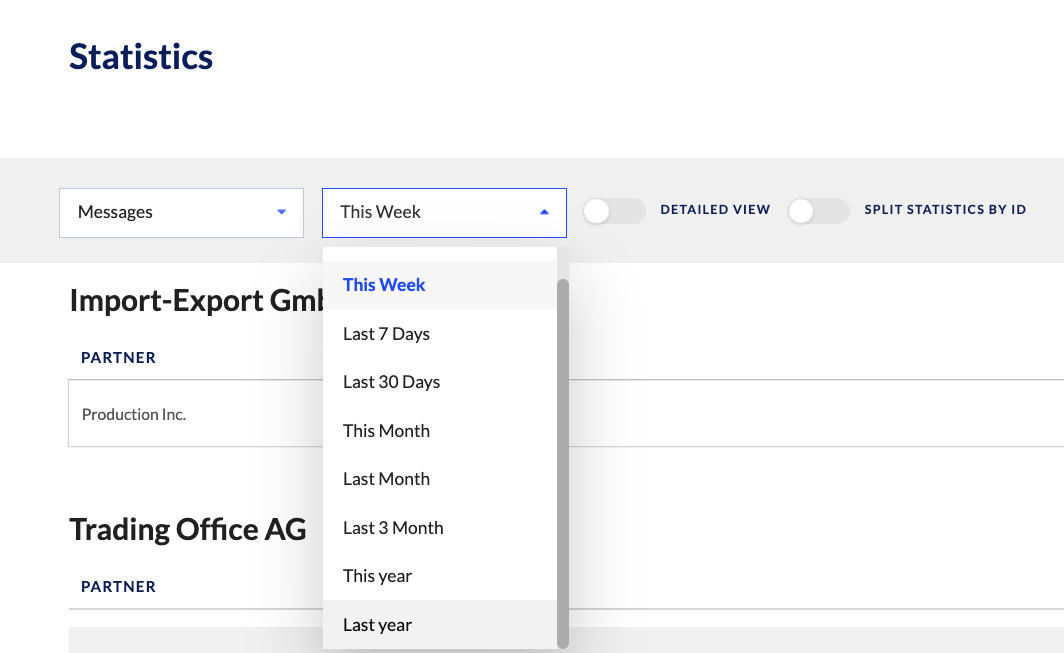
Filter
Users can filter by messages or documents, but also based on certain time periods, as shown below:
Detailed View
Users can see detailed information about their messaging statistics by selecting the “Detailed View” toggle, as shown below:
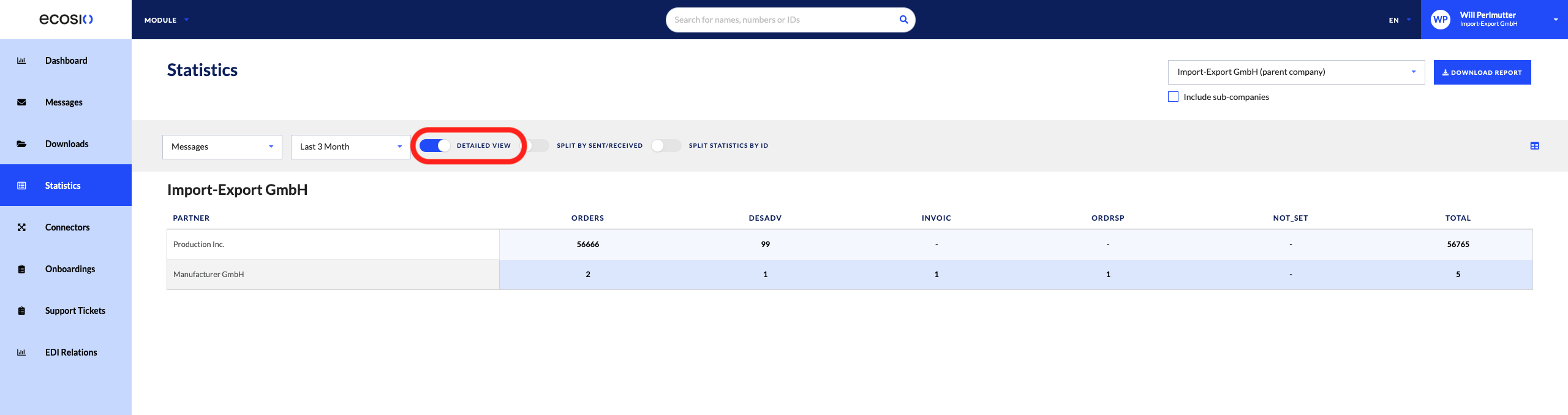
By doing so, users will see the raw number of billed messages or documents per DocType.
Additionally, users can split the billed messages or documents based on whether these billed messages or documents were sent or received, as shown below:
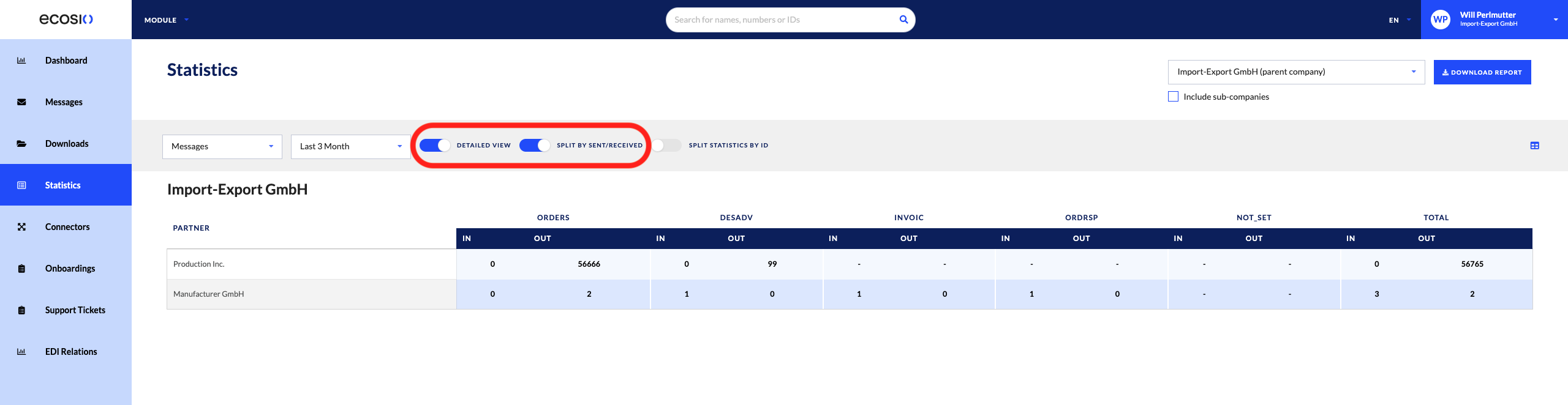
If a message or document is identified as “IN”, it means it was received by your company or sub-company; if a message or document is identified as “OUT”, it means it was sent by your company or sub-company.
NoteUsers cannot see “Split by Sent/Received” without having the “Detailed View” toggle switched on.
Split by Statistics ID
Users can see split billed messages and documents by the alias or ID attributed to the partner with which they are sending or receiving messages and documents. It is shown below:
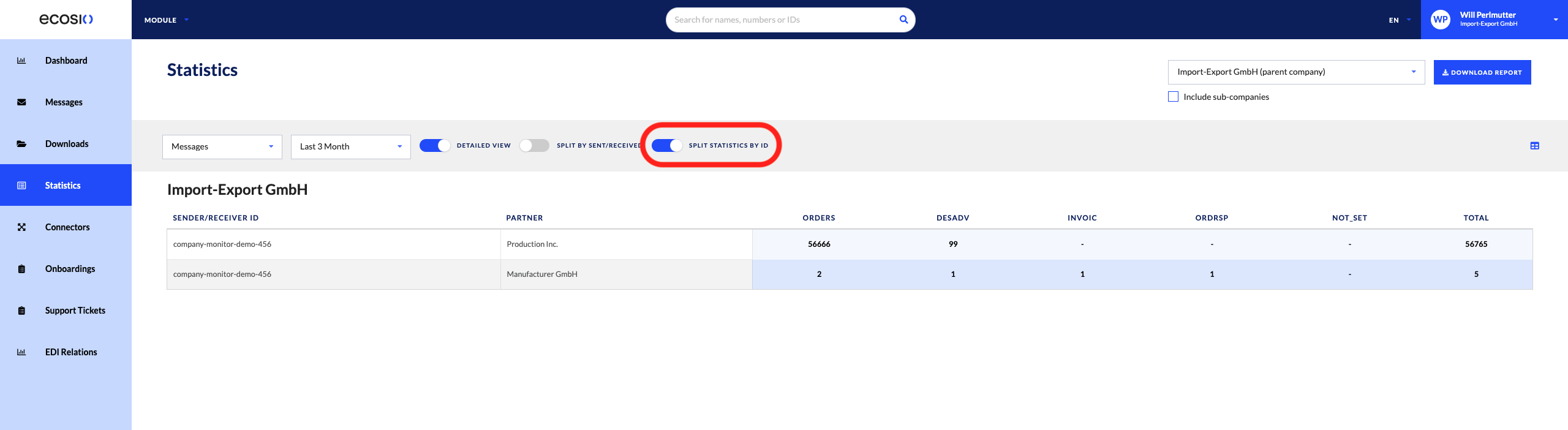
By doing so, users can view more information about the partners they’re exchanging messages or documents with.
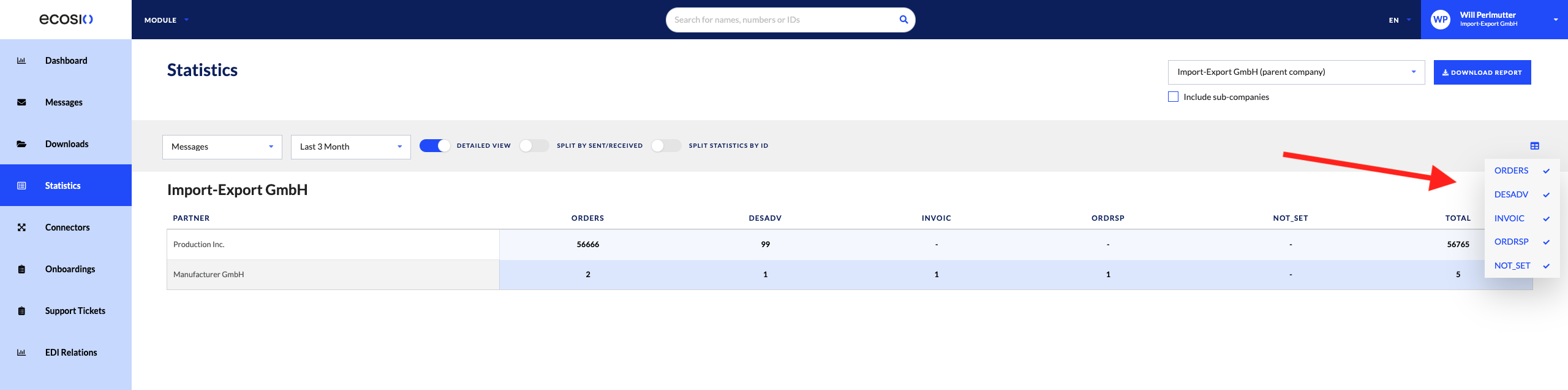
Show/Hide DocType
Users can add or take our DocTypes in the message or document statistics they’re viewing. This is done as shown below:
Download Report
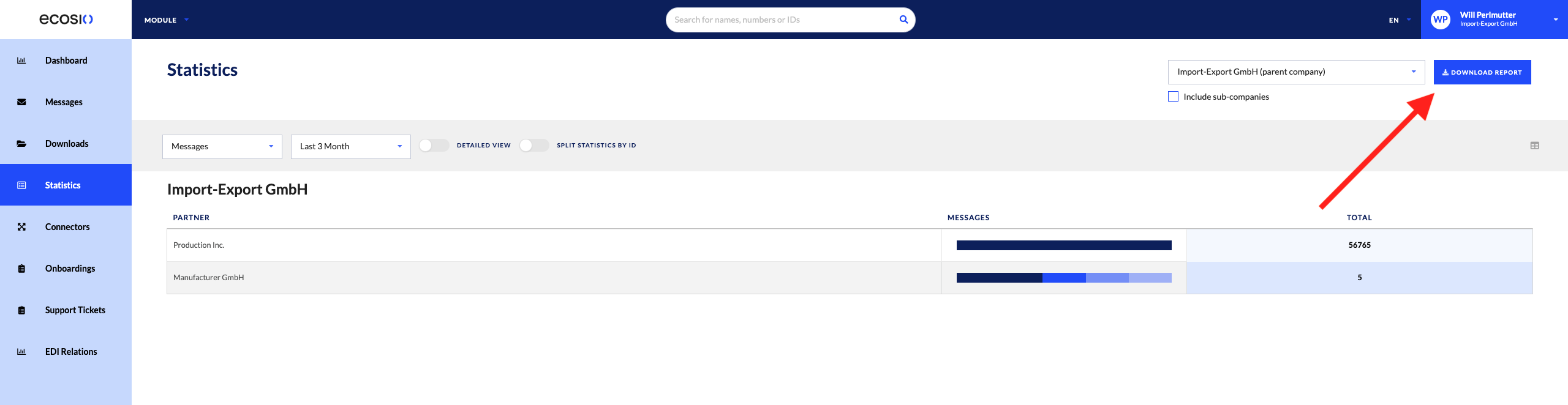
Users can download a statistical report of what is being displayed on the Statistics Details page at that time. To do so, select the button in the right-hand corner, as shown below:
FAQs
What’s the difference between a message and document?
- A message is a container for documents to pass through the ecosio integration hub. A message typically contains one document, but can contain multiple documents depending on your setup as determined before receiving access to the Monitor.
Why are billable messages and documents displayed in the Statistics Details page?
This figure is a more accurate depiction of messages as they are displayed to you as a user and what you are billed for by ecosio; therefore, there are no confusions about what you view inside the Monitor.
Updated 10 days ago