
Which actions can you take?
Which actions can you take from the message details page?
Which actions can you take from the message details page?
From the message details page, you can:
- Copy messaging information to paste for your own purposes
- Download message content (from first to last state)
- Edit a message if it is required
- Handle messages if you have an “Exception (customer)” status
- Resend messages if required
Copy messaging information
From the message details page, any information that is followed by a “copy” icon can be copied to eventually paste for your own purposes. An example is below:
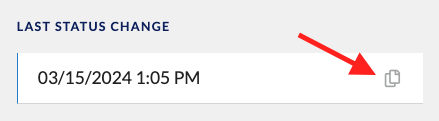
The following information can be copied from the message details page:
- Last status change
- Message reference
- Sender
- Receiver
- Filename
- Message classification
- Message type
- ecosio message ID
For more information on these pieces of information, see their respective definitions in the Message overview pagedocumentation.
Download Message Content
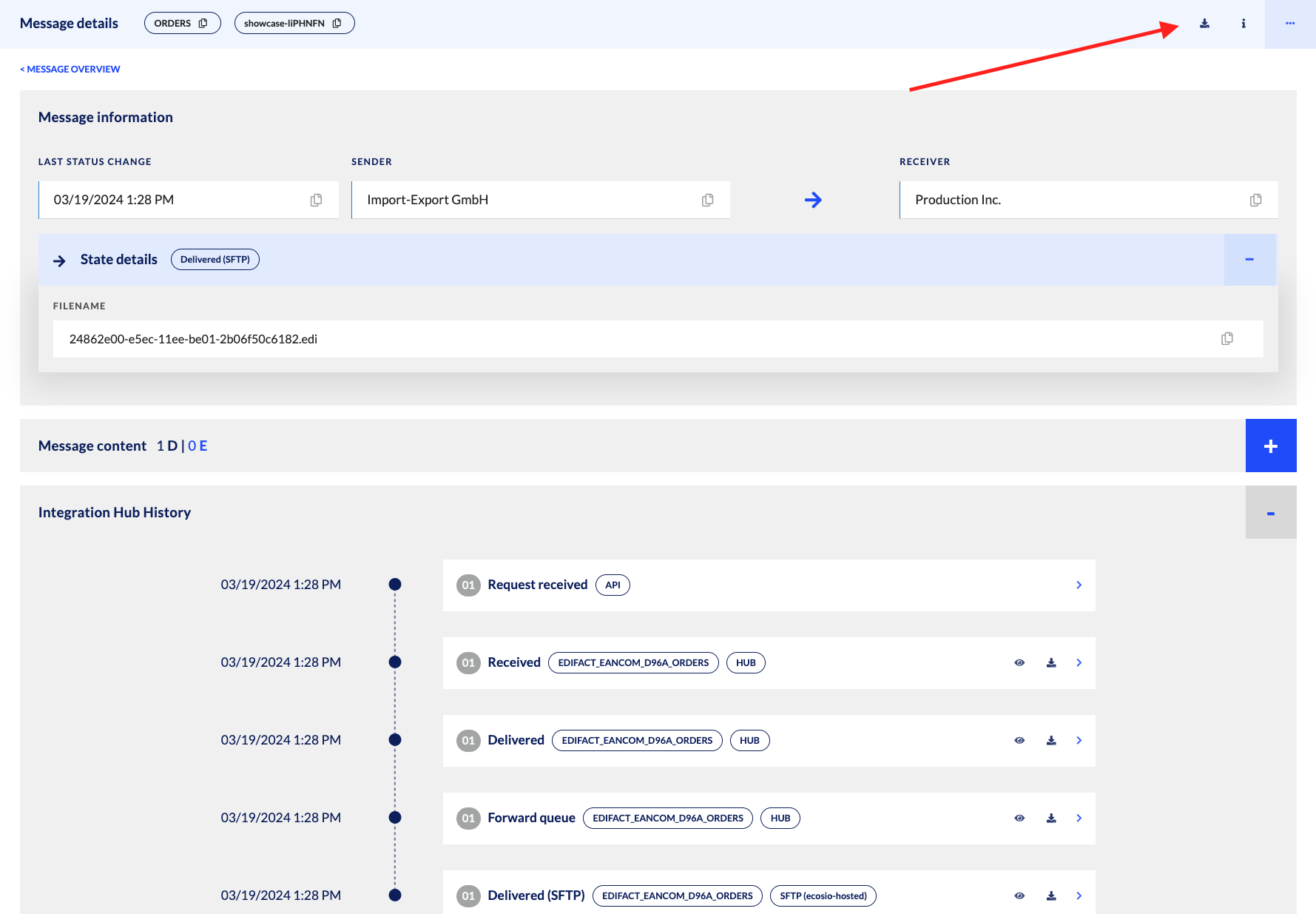
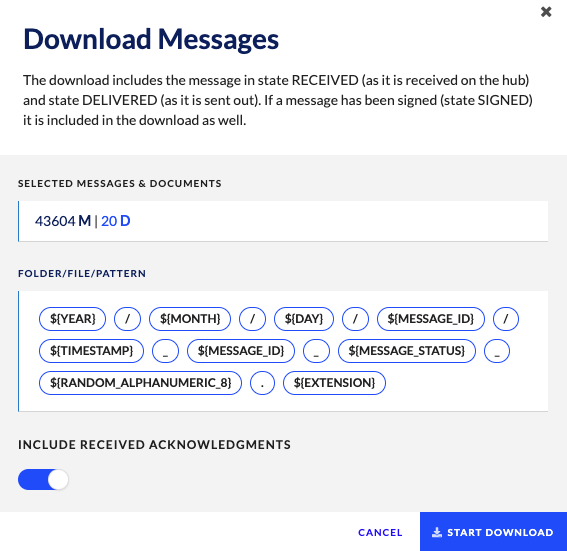
By selecting the “download” icon at the top of the page, a full download with a suggested “FOLDER/FILE/PATTERN” structure, as provided or defined in the “Advanced” Company settings.
“Quick Download” Message Content
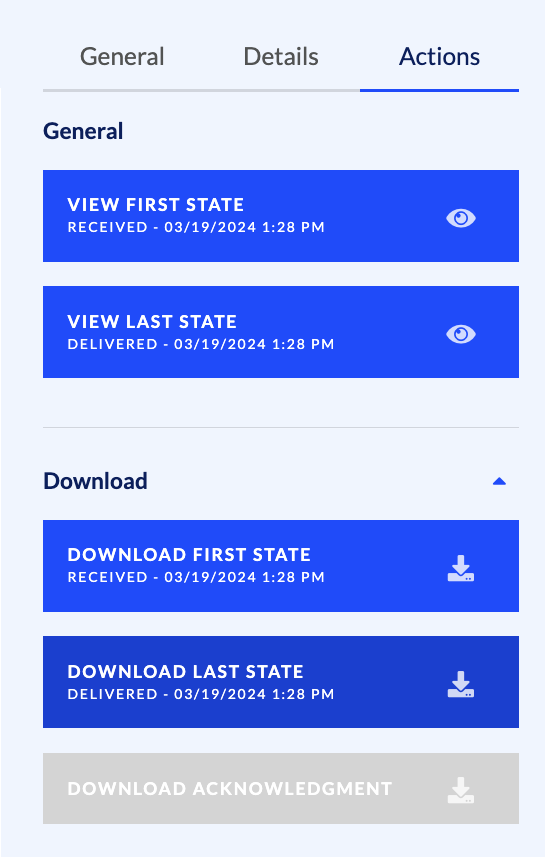
You can download messages content from the message details page. Message content can be downloaded in:
- Its 1st or last state (select Actions on the right-hand side of the page)
- All other states (select Details on the right-hand side of the page, the state you’d like to view, and then the download icon)
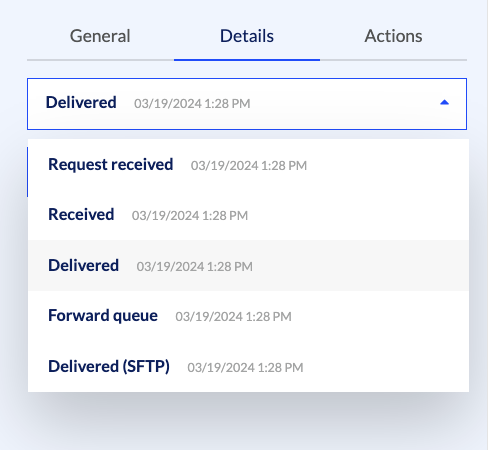
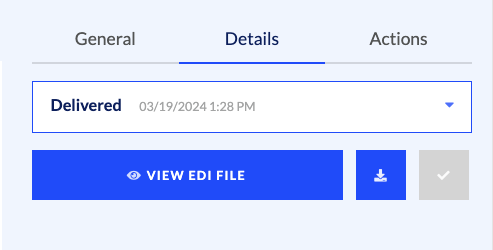
At every step in the message’s integration hub history (by clicking the “download” icon as shown below):
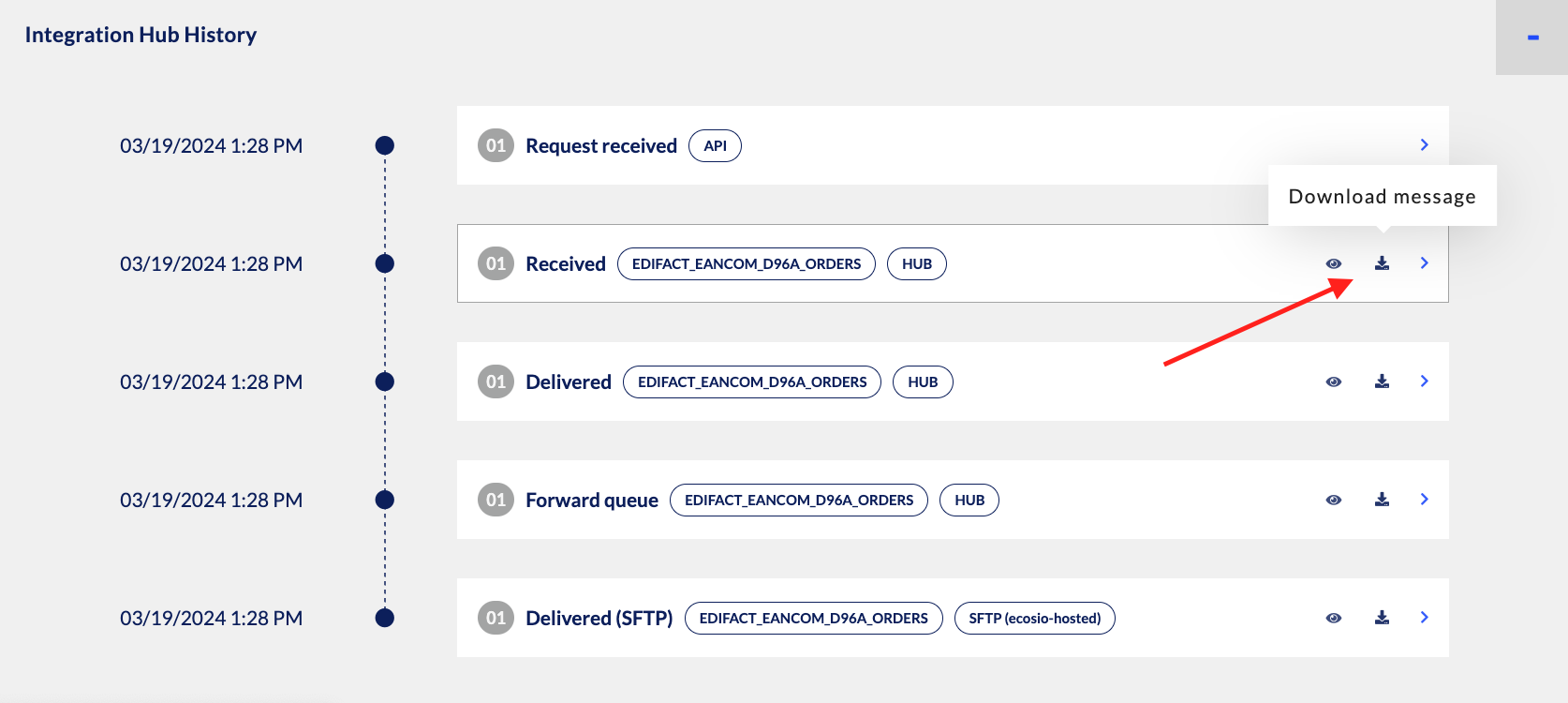
Message states
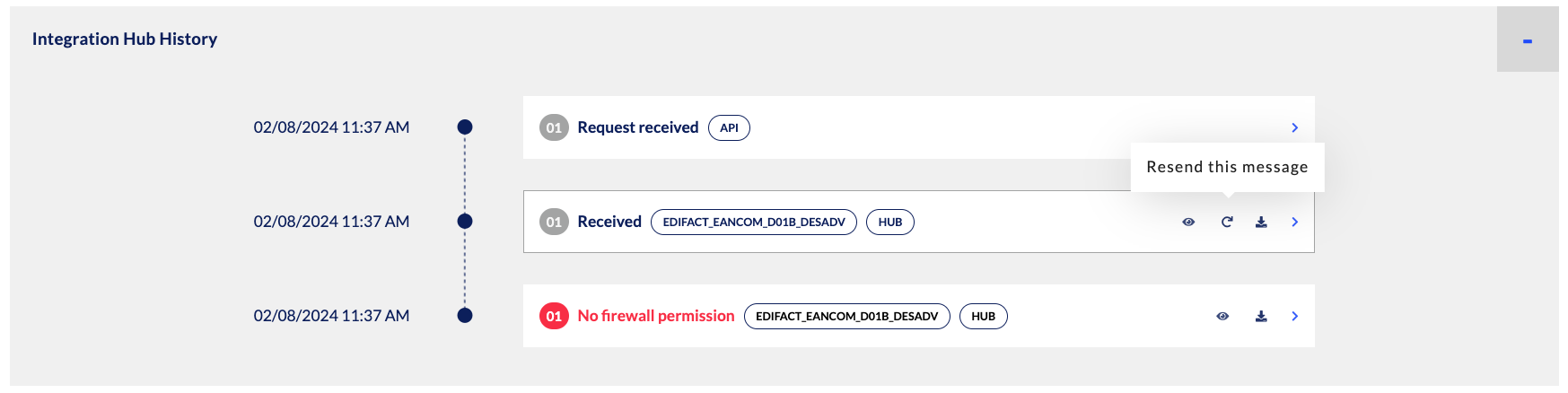
An example of message states as the message crosses the ecosio platform is shown below:
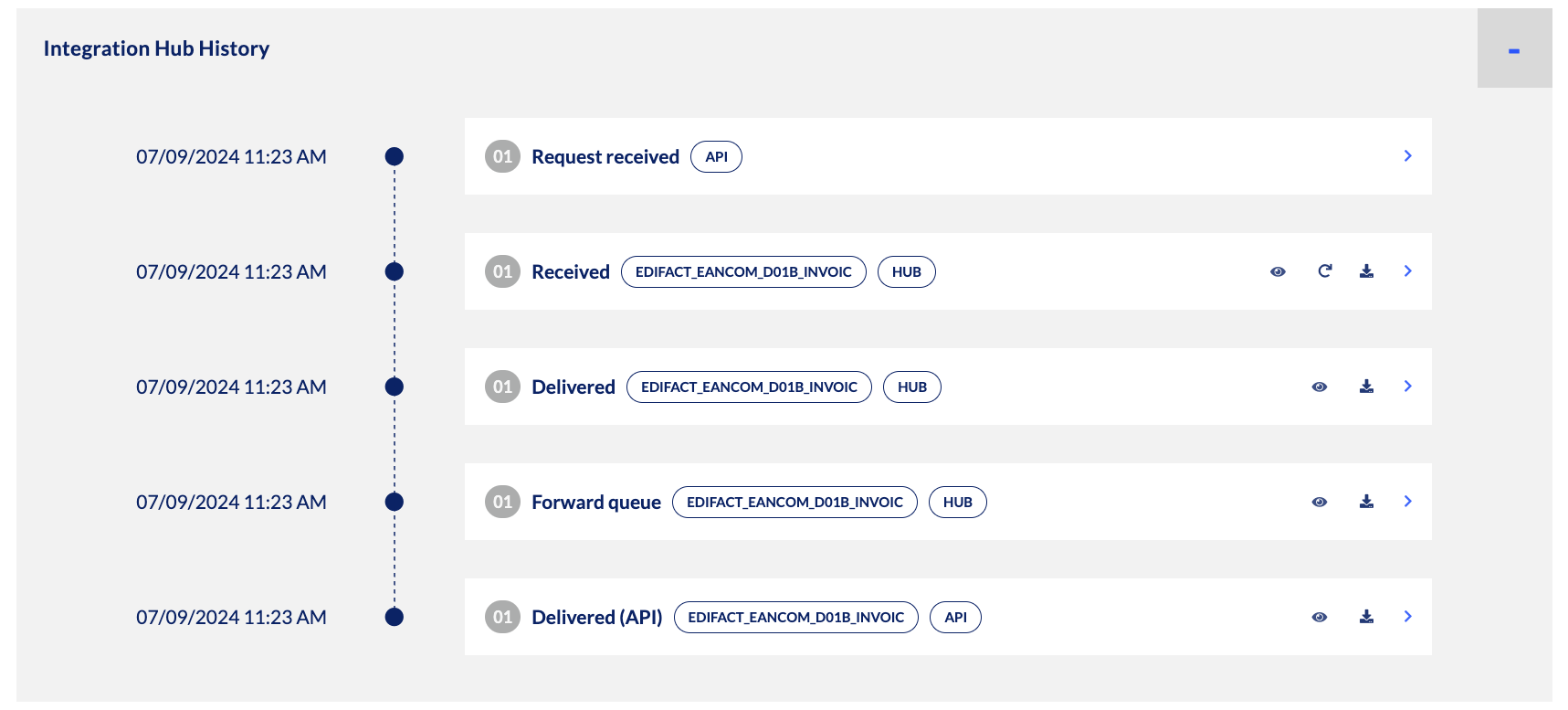
At each message state, users can view the EDI file, as well as download or resend/edit the message. Message states are determined by the state mode, as it is configured during onboarding. The state modes are described below:
State modes
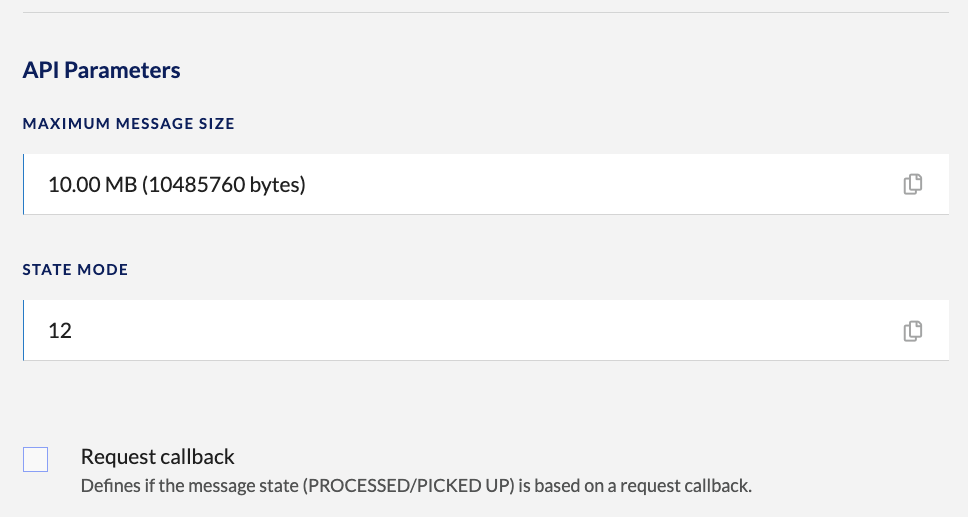
Over time, states (statuses) returned by the ecosio API change slightly. Therefore, there are different State Modes with specific details about which statuses can be returned by the API. The following modes are currently available: 10, 11, 12, and 13.
All details as it relates to these differences are available in State modes. However, if you do not have access to connect.ecosio.com, here is a condensed version of the original state mode (10), as well as the modifications made in state modes 11, 12, and 13.
Mode 10
| State | Finale State | Description |
|---|---|---|
| REQUEST_RECEIVED | NO | Set right after the request was received. |
| RECEIVED | NO | Set once the document type, sender and receiver of the document got determined. |
| DELIVERED | NO | When the message became available for download to the recipient. |
| PICKED UP | NO | When the message was picked up by the recipient. |
| FORWARDED | NO | When the message was successfully delivered to the recipient. |
| PROCESSED | YES | When the recipient acknowledged the successful processing of the document via callback (only available via API). |
| EXCEPTION | NO | When an error occurred while processing or delivering the document to the recipient. |
| HANDLED | YES | When the document processing or delivery failure was acknowledged by a human authority and appropriate counter-measures have been taken, but no resent was necessary. |
| ARCHIVED | YES | When the document got archived and not processed or made accessible further. |
| PROCESSING | NO | When the document processing has not yet finished. |
Mode 11
Two further states were added to the set of exposed states in version 1.0 (EXCEPTION_UNDER_REVIEW & ONBOARDING).
| State | Finale State | Description |
|---|---|---|
| EXCEPTION_UNDER_REVIEW | NO | In case a message has been transitioned into the state EXCEPTION and a support employee is actively working on the resolution of the exception. |
| ONBOARDING | YES | In case a message has been transitioned into the state EXCEPTION but the customer is currently in the onboarding process - probably just testing the connector. |
Mode 12
A clean of certain exposed states was done which lead to the removal of certain states such as EXCEPTION.
| State | Finale State | Description |
|---|---|---|
| EXCEPTION_CUSTOMER | YES | An exception occurred which can not be resolved by ecosio but needs to be fixed by the sending company itself. |
| HANDLED_CUSTOMER | YES | Entering this state can only triggered by customers (e.g., in the monitor) after they have act on an EXCEPTION_CUSTOMER. HANDLED_CUSTOMER is a final state. |
Mode 13
Message states PICKEDUP, FORWARDED and PROCESSED are replaced by SENT which marks a final status.
Documents sent to clients which support the CALLBACK feature will end up in the state SENT once the API received a positive callback by the receiver, indicating that the processing of the document was fine. In case the recipient run into a problem the message is updated to an exception status.
In case a recipient client does not yet support a callback, state SENT is set once the recipient received the document, either bey manually picking up the document or by getting it forwarded automatically.
| State | Finale State | Description |
|---|---|---|
| SENT | YES | When the recipient received the document and depending on the clients capabilities also acknowledged its processing |
Finally, the state mode for the messages and documents being exchange is specified within the “Connectors” section of the Monitor:
Resend and Edit Messages
Users can resend messages directly inside the message details pages. In order to do this, however, the ecosio Onboarding & Operations team must configure this for you, and you must have either “Company Admin” or “Messaging Operations” permissions (this also applies to ERP Partners).
NoteResending a message means the message will first be reprocessed based on its source format (e.g. the last
RECEIVEDstate). From there, all configured mappings and scripts will be applied again. From there, the message resending can take place, whereby any previously known errors can be validated as fixed when theEXCEPTIONstate is no longer present.
What are some typical situations in which a Monitor end user need to resend a message?
| Exception state detail | Description | Possible user action |
|---|---|---|
| Message Exception. See Status Information for Details. | This error requires further investigation from ecosio. When this is the case, a member of the Onboarding & Operations team will contact you about further actions you may have to take in order for this message to be delivered to the end receiver. | If the end user is the sender of the message, this user may have to correct and rearrange some data as requested by ecosio in order for the exception to no longer be triggered. |
| No Receiver Identified | This error means that the ecosio platform could not identify the receiver of the file. This is usually due to either a missing value, or a value which is not held in the alias for the trading partner. | If specified by ecosio, the end user may have to verify the correct receiver of the message, and resend the message with the update, correct information so the message can be processed. |
| Unable to Determine Document Type | This error means that the ecosio platform could not identify the document type of the file. |
Additionally, a few points to consider:
- Messages must be in the appropriate state to be resent (”Exception (ecosio)”, for example).
- If a message is resent, that message is locked from any action by any other Monitor user for 6 hours. Only the original user who resent the message can take action on the message during that 6-hour window.
- Duplicate message checks during this time will not be take place during resending, so be mindful of this when resending.
- Resending certain document types (e.g. ORDER) can result in being processed twice for the receiver if the messaged was successfully processed before. Communication on specific messages before resending can be helpful in avoiding such mistakes from happening.
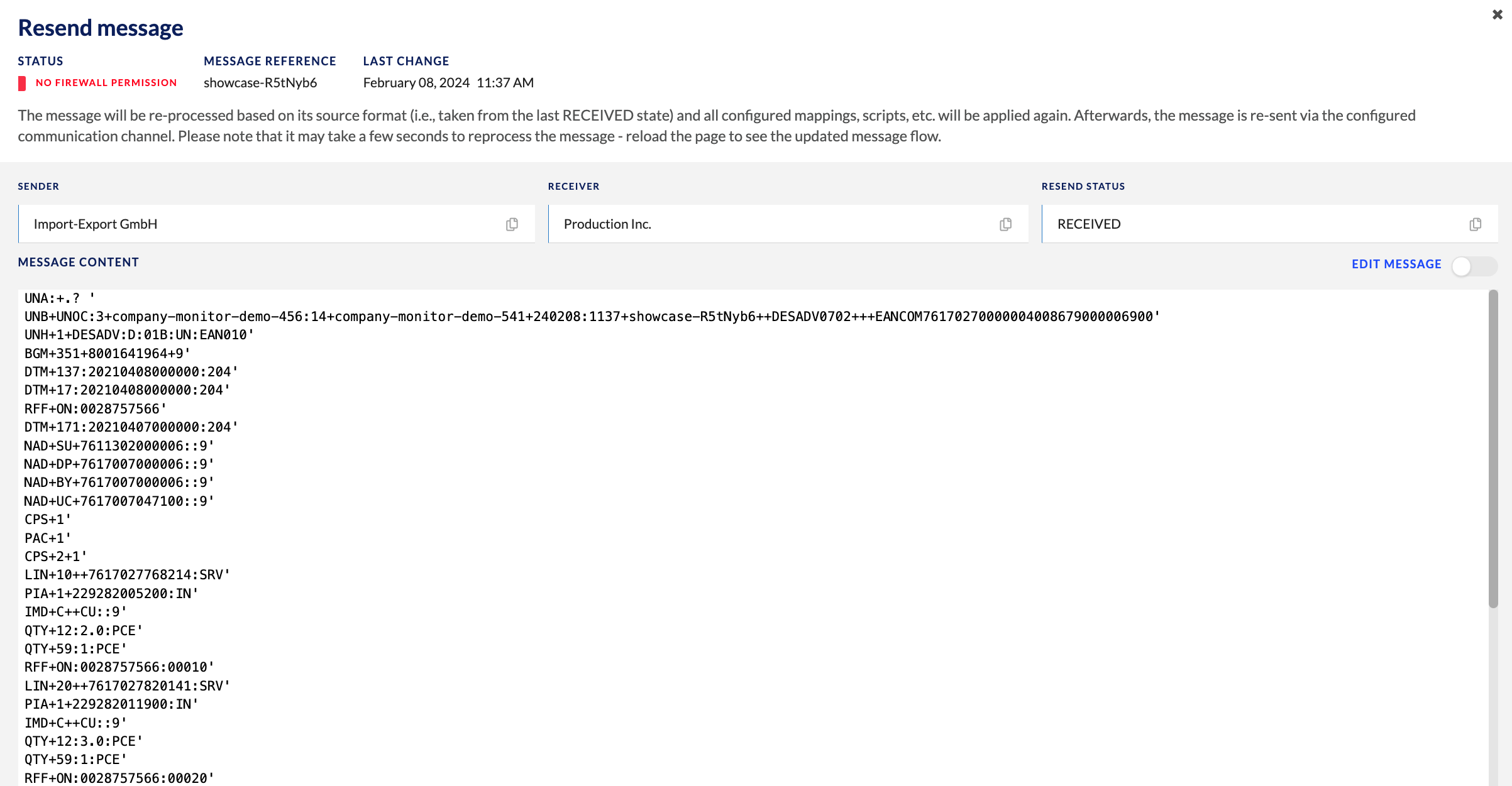
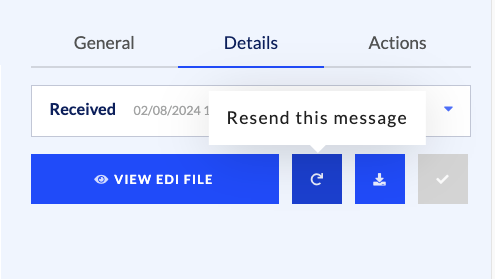
Resending messages can be done in the following places:
- Selecting “Details” on the right-hand side of the page:
- In the “Integration Hub History” section of the page, in the state that preceded the exception being fired:
- Selecting “Actions” on the right-hand side of the page, followed by the “Operations” drop-down:
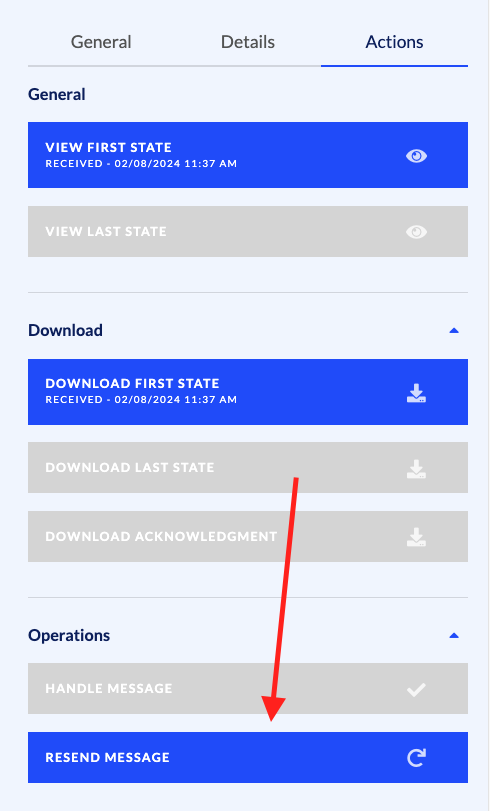
Finally, messages can even be edited directly inside the Monitor if this is configured by the Onboarding & Operations team on your behalf. In order to do so, you’ll have to turn on the “EDIT MESSAGE” toggle.

Handle Messages
You can “handle” messages by marking them as cleared when the state of the message is “Exception (customer)”. What does handling mean? Handling means that one takes care of exceptions. Handling means the message transitions from a non-final state (example: EXCEPTION) to a final state (example: HANDLED). In this instance, it means that your company has to take action on the message before it can continue to move through the integration hub. Additionally, users must have either “Company Admin” or “Messaging Operations” permissions in order to handle messages.
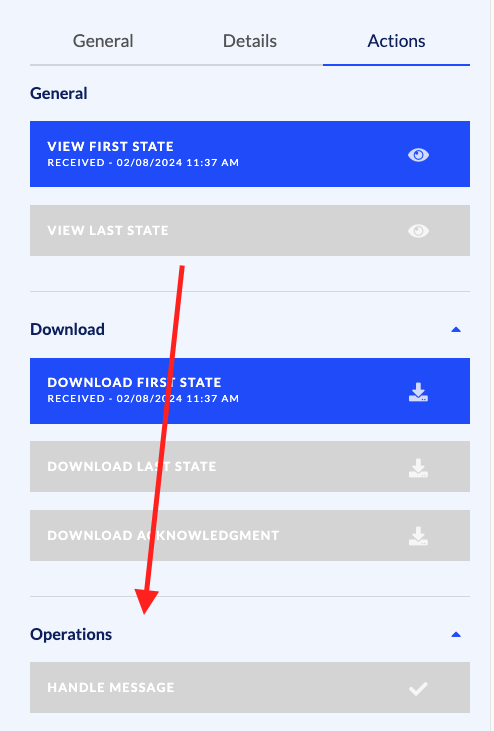
Messages can be handled by selecting “Actions” on the right-hand side of the page, followed by selecting the “Operations” dropdown. If a message can be handled, the box will turn blue and be available to select.
Updated 11 days ago