
Messages
Viewing messages is at the core of the Monitor’s main functionality. Its purpose is to provide full EDI transparency for both IT and business users.
Introduction
Viewing messages is at the core of the Monitor’s main functionality. Its purpose is to provide full EDI transparency for both IT and business users.
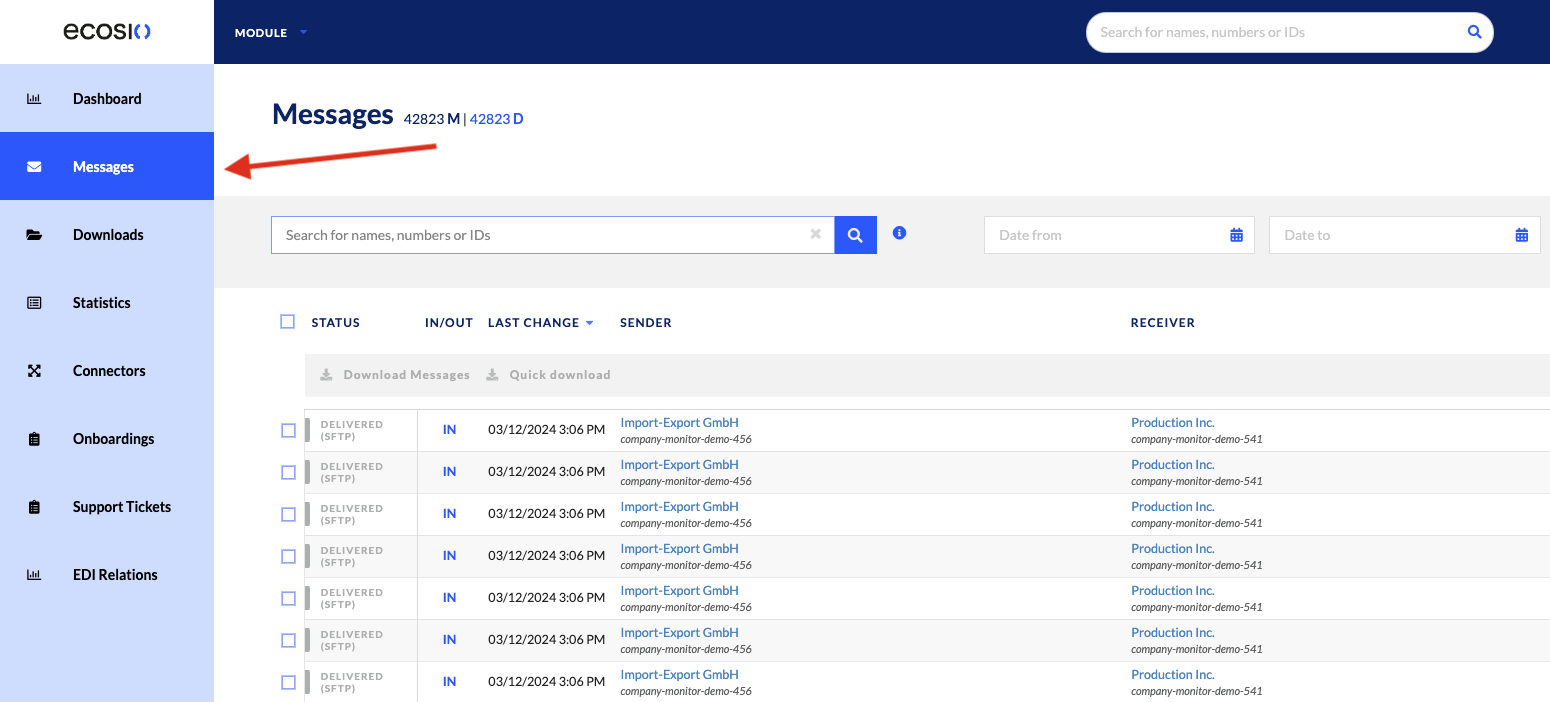
Users can view messages by clicking the “Messages” tab within the Monitor:
Users can visualise:
- An overview of all messages and documents which have been sent and/or received via the ecosio integration hub.
- Specific details related to a group of messages or individual messages (within the messages details page).
Additionally, users can take quick actions within the “Messages” tab in order to more quickly facilitate EDI operations without lengthy idle times.
Prerequisites
- When a company begins using ecosio products and services, a Monitor configuration will be setup by our Onboarding & Operations team shortly after.
- All users can view messages inside the Monitor; in order to re-send messages directly from the Monitor, users must also have the “Messaging Operations” permission.
Step-by-Step Guide
After clicking the “Messages” tab within the Monitor:
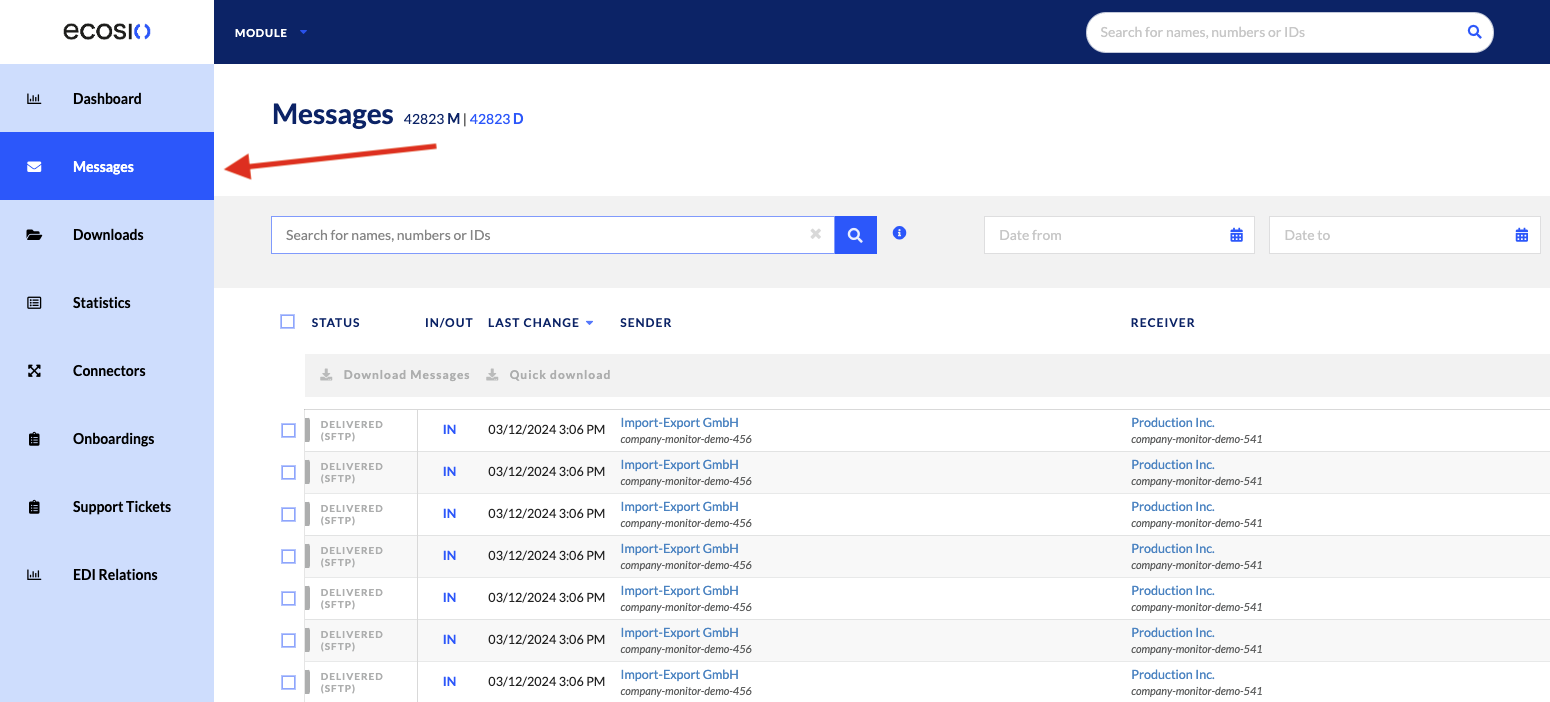
You’ll be able to view and take actions on your messages and documents as they cross the ecosio integration hub.
Customise overview columns
Before drilling down into the messages via filtering, search, and sorting, you can choose which columns you’d like to view in the message overview page. By doing so, you can show the information you want to see, and hide the information that is irrelevant to you. However, in order to do this, you’ll need to know more about what each column stands for.
Statuses
- Status: The state the message is currently in as it passes through the ecosio integration hub. The following message statuses are listed:
- Received:
The message has been successfully parsed. Message type, sender and receiver have been successfully identified, and the message is ready for further processing. - Master data request received:
The message was received from ecosio Master Data and is further processed on the ecosio Integration Hub. - Request received:
This is the first state upon receipt of a message. The message has been stored as is, but message type, sender and receiver have not yet been identified. - Applied script:
A script has been applied to the message. - Converted:
A mapping (step) has been applied to the message. - Onboarding:
The message has been marked as test message during onboarding (setup) of a new relation and will not be processed further. - Re-sent:
The message has been queued for re-processing (re-sending). Configured mappings, scripts, etc. may be applied again. Then the message is sent out again via the configured communication channel. - Send-retry:
An attempt has been made for the message to be resent. After the maximum send attempts has been exhausted, the message becomes an EXCEPTION. - Parked:
The message has been stopped yet billed. - Halted:
The message has been stopped and not yet billed. - Picked up:
The message has been picked up from the receiver via Web EDI, API or SFTP (if hosted by ecosio). - Forward queue:
The message has been queued and will be sent out immediately (interim state). - Delivered (Web EDI):
The message is available to be picked up by the receiver via ecosio Web EDI. - Forwarded:
The message has been forwarded to the recipient and the receipt has been technically acknowleged. - Under review (ecosio):
The message exception is currently under review by ecosio. - Decoded:
The message has been decoded (decrypted) following its receipt. - Delivered (API):
The message is available for the receiver via the ecosio Integration Hub API. - Exception (ecosio):
The message is currently in an error state. Our ecosio support team has already been notified and will take care of it. We will contact you if required for mitigation. - Exception (customer):
The message is currently in an error state, which the customer needs to take care of. This is typically related to incorrect master data or double submission of the same message, etc. - Handled (customer):
The message was in an error state before, that required the customer to act (please see description of the preceding exception state). The sender was notified about this issue. Afterwards,the message has been marked as handled and won't be processed further. In case of questions, please contact ecosio’s support team. - Merged:
The message (document) has been merged with other messages (documents) into a single (batch) message. - Waiting for merge:
The message (document) is waiting to be merged by a periodic merge process. - Signed:
The message has been digitally signed. - Picked up, unacknowledged:
The message has been picked up by the receiver. The receiver is expected to acknowledge the receipt of the message soon. - Draft:
The message is currently stored as a draft. - Archived:
The message has been archived. - Forwarded part:
The message (containing multiple documents) has been split into single documents upon forwarding of the message. This state indicates that one of the split documents was forwarded. - Persistence queue:
The message has been processed on the hub and is ready to be delivered to the receiver (interim state) after checking if this relation is active. - Sent unacknowledged, long wait:
The message was sent out, but the recipient has not yet acknowledged the receipt of the message. However, acknowledgments from this recipient may take multiple hours or even days. - Sent unacknowledged:
The message has been sent to the recipient, but the receipt was not yet acknowledged. - Delivered:
The message has been processed on the hub and is ready to be delivered to the receiver (interim state). - Prepared for sending:
The message has been prepared (wrapped) according to the requirements of the protocol and is ready to be sent out. - Handled:
The message was in an error state before (please see description of the preceding exception state) and the ecosio support team has resolved the issue. You may have been notified about the error by the ecosio support team. Since this specific message can't be further processed, the message has been marked as handled. In case of questions, please contact the ecosio support team. - Processed:
The recipient has acknowledged the receipt and technical processing of the message. - Split:
The message contained multiple documents and has been split into multiple messages with a single document in each - Delivered (SFTP):
The message is available for the receiver via the ecosio-hosted SFTP server. - FORWARDED (on ecosio):
The message has been forwarded to the recipient and the receipt has been technically acknowleged.
- Received:
- In/Out
IN: Your company is the receiver of the message
OUT: Your company is the sender of the message - Last change: A timestamp of the last change made to the message.
- Sender: Which entity (partner or company) is sending or sent messages.
- Receiver: Which entity (partner or company) is receiving or received messages.
- Message type: A category of EDI messages containing the requirements for specific types of business transactions. Examples include: ORDERS, DESADV, INVOIC, etc.
- Document count: The number of documents contained within the message.
- Message reference: This is a unique identifier of the identified message. It is extracted by the integration hub from the document that has been transmitted by the sender.
- Document numbers: The invoice number(s) of an invoice contained in a message or interchange. It is extracted from EDIFACT BGM segments or from XML or json documents.
- Application reference: This reference is only available for EDIFACT document types, as part of the UNB segment of an EDIFACT document.
Pagination
As a default, you will be able to see the most recently sent / received messages. If you select the Load More button, an additional 20 messages will be shown. From there, only 40 messages will be displayed at a time. By continuing to select the Load More button, messages will be displayed according to your filters until there are no more to show.
Filtering
Messages can be viewed and filtered according to the date they were sent or received, the message direction, the message state, and the message type. All of this can be done through filtering capabilities as seen below:

Additionally, you can reset all filters by selecting the “clear” button to the far-right of all filters.
Full-text search
You can conduct full-text search within the message overview page based on specific names, numbers or IDs. Do note that this full-text search does not include wildcards (e.g. misspellings), but if the content being search is incomplete and a match, messages will appear accordingly. See our documentation on full-text searchfor more details.
Sorting
You can sort messages, in conjunction with filtering capabilities, by ascending or descending order. Messages can be sorted according to:
- Timestamp of last change (oldest or most recent)
- Message type (alphabetical order)
- Message reference (numerical and then alphabetical order)
- Document count (lowest to highest)
Additional views
Additionally, you can see more information related to the sender and receiver of messages by clicking on the “Company Name” expand, as shown below:
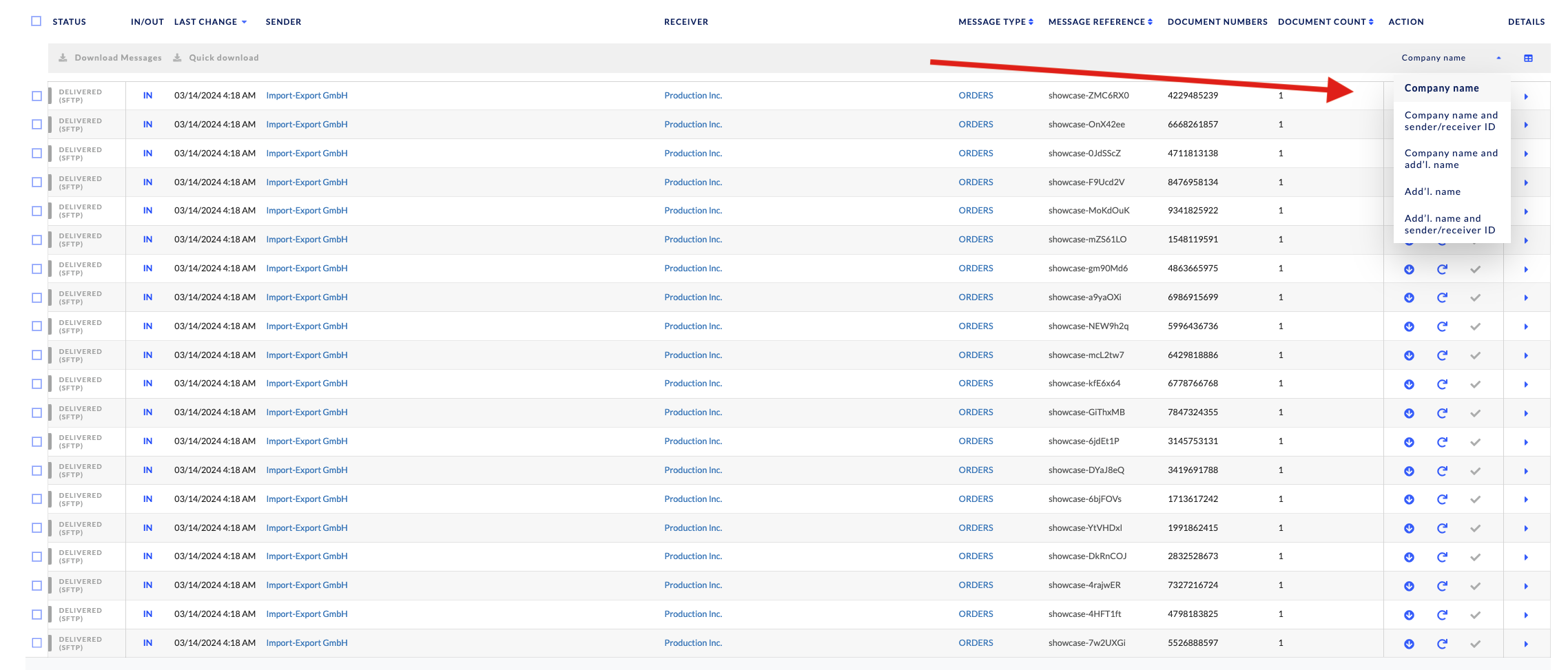
- Company name: Displays the sender and receiver name as extracted from the message of EDI partners on the ecosio integration hub.
- Company name and sender/receiver ID: Displays the sender/receiver names as well as sender/receiver IDs as extracted from the message. The sender/receiver IDs are the alias IDs determined by the company when setting up the onboarding project.
- Company name and additional name: Displays the sender/receiver names as well as the sender/receiver alias names (such as company subsidiaries or colloquial names for the company), if available.
- Additional name: Displays the sender/receiver alias names (such as company subsidiaries or colloquial names for the company), if available. If unavailable, the company name as described above is displayed.
- Additional name and sender/receiver ID: Displays the sender/receiver alias names (such as company subsidiaries or colloquial names for the company), if available, as well as the sender/receiver IDs as extracted from the message. The sender/receiver IDs are the alias IDs determined by the company when setting up the onboarding project.
Updated 10 days ago